JFIF Thumbnails Not Showing in Windows File Explorer
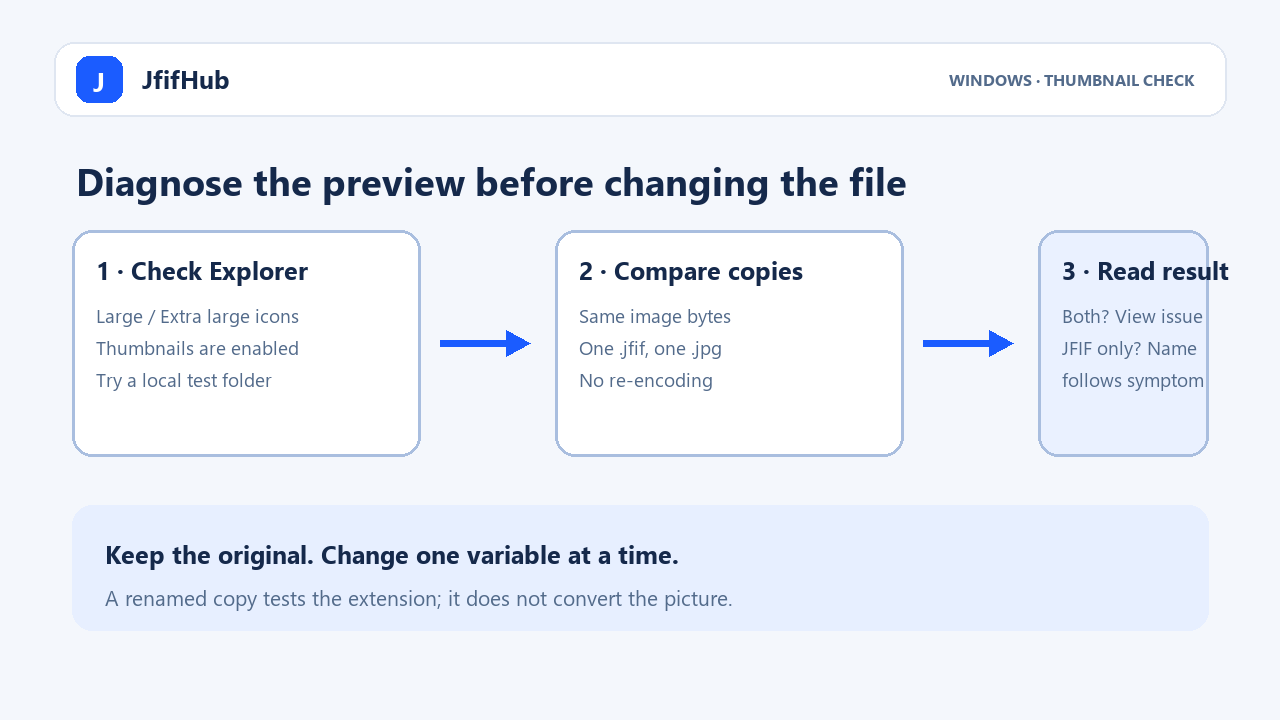
If a JFIF image opens but File Explorer shows a generic icon, first check that the folder uses an icon view and that thumbnails are enabled. Then compare a separate copy named .jfif with the same image bytes named .jpg. If only the JPG copy gets a thumbnail, investigate how Windows handles that extension; if neither does, start with the folder view, thumbnail setting, or cache. Do not edit the registry just to test one photo.
Open the JFIF to JPG converter
Run a safe JFIF-versus-JPG comparison
- Keep the original file unchanged. In File Explorer, make two copies of the same image in one local test folder.
- Name one copy
thumb-test.jfifand the otherthumb-test.jpg. This changes the names only; it does not convert either image. - Open the folder and select Large icons or Extra large icons. Wait briefly for Windows to build previews, then press F5 once.
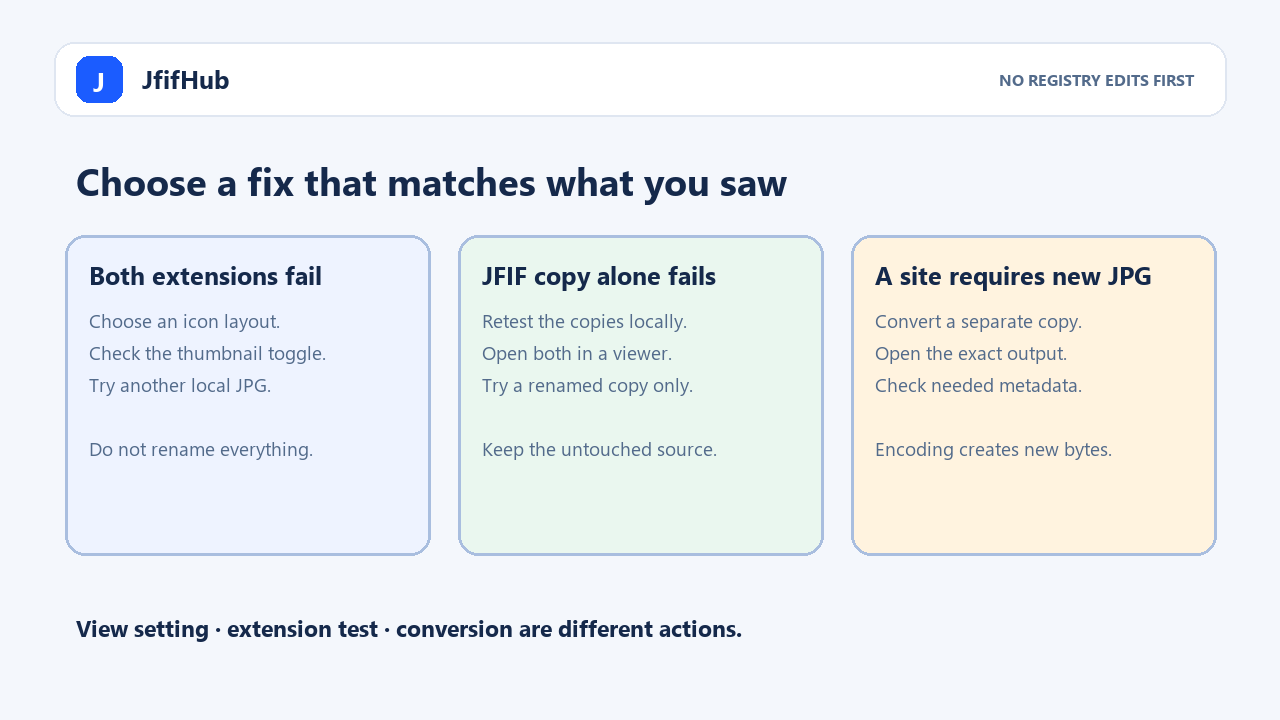
- Compare the two copies. If both show previews, the original folder or its cached view may be the difference. If both show generic icons, check the Windows thumbnail setting and whether the files are fully available offline.
- If only the JPG copy shows a preview, test whether the JFIF file still opens in Photos or another image viewer. That result narrows the issue to Explorer's handling of the JFIF name; it does not prove that the image data is damaged or identify a specific registry value.
Check that the two copies really match
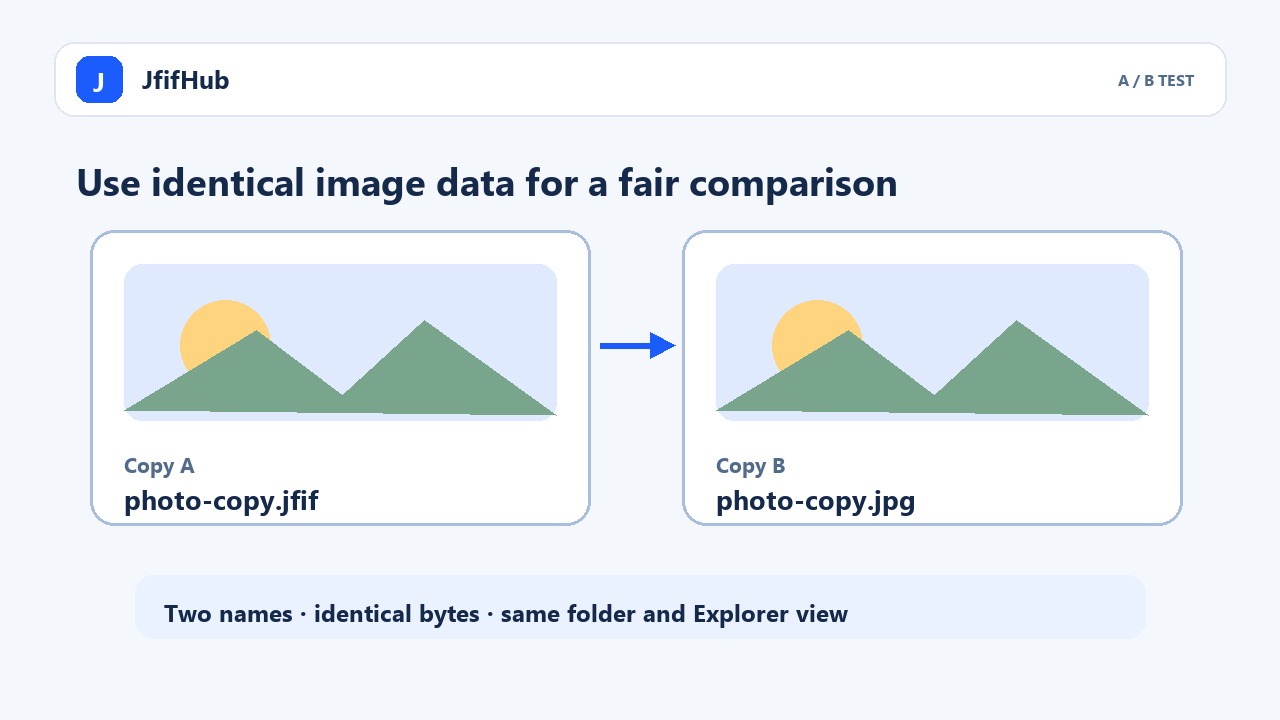
If you copied the files or want to rule out an accidental re-save, compare their SHA-256 hashes before interpreting Explorer's result. In PowerShell, pass both paths to Get-FileHash:
Get-FileHash -LiteralPath 'C:\Users\you\Pictures\thumb-test.jfif', 'C:\Users\you\Pictures\thumb-test.jpg'Compare the values in the Hash column. Matching hashes confirm these two files have the same contents, regardless of their different names. If the hashes differ, this is not a clean extension-only test: make fresh copies from one untouched source without opening and saving either copy in an image editor, then compare again. A matching hash confirms the bytes, not that Windows must generate a thumbnail.
Separate a folder setting from a JFIF-specific symptom
File Explorer has layouts that show thumbnails and layouts that show file-type icons. Switch to Large icons or Extra large icons before judging a preview. In Folder Options, the View tab also has an “Always show icons, never thumbnails” setting; if it is enabled, turn it off and apply the change. These checks affect the view, not the image file.
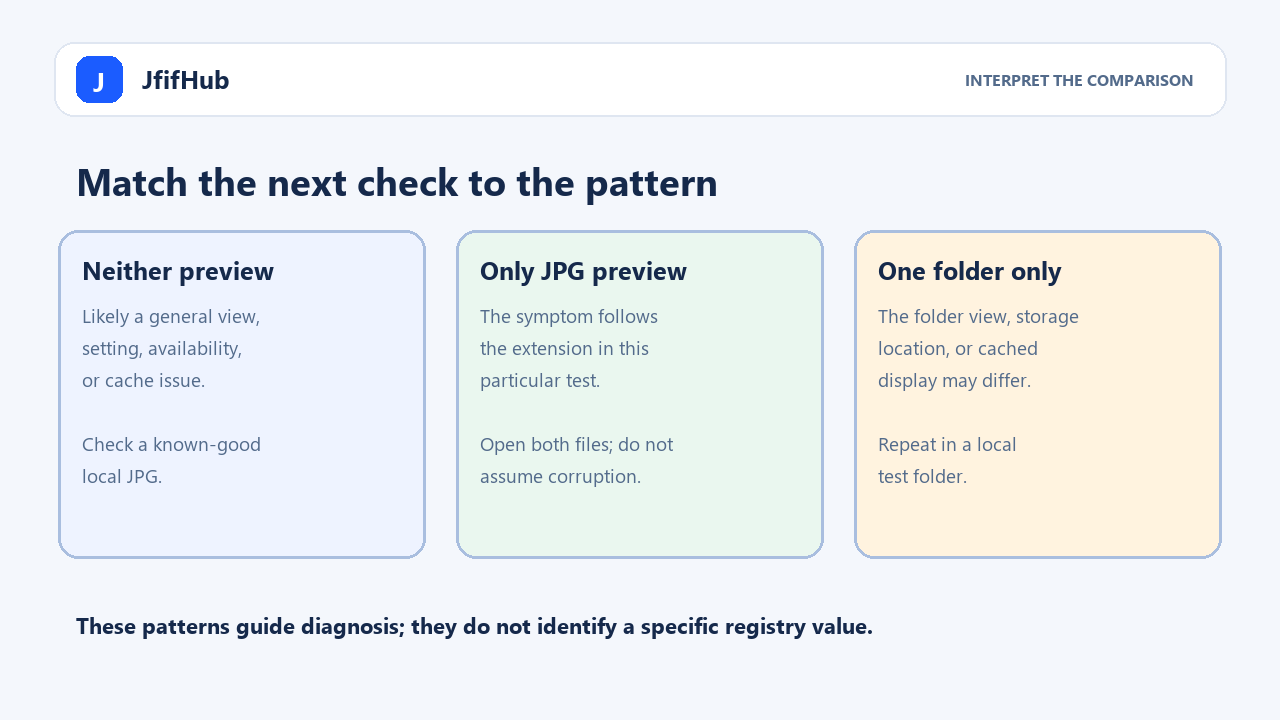
Use the comparison table to choose the next step. These are diagnostic clues, not guarantees: Windows version, installed image components, folder location, and cached state can affect what Explorer displays.
| What you observe | What it suggests | Next safe check |
|---|---|---|
| Neither copy has a thumbnail | A general view, setting, availability, or cache issue is more likely than a JFIF-only issue. | Try another known-good local JPG in the same folder and confirm an icon view is selected. |
| JPG has a thumbnail; JFIF does not | The symptom follows the extension in this test. | Confirm both copies open in an image viewer. Keep the original and use a renamed copy only if an app needs the JPG suffix. |
| Both copies have thumbnails here, but not in the original folder | The original folder's view, storage location, or cached preview may be involved. | Compare a local folder with the original location before clearing any cache. |
| Neither copy opens in a viewer | A thumbnail diagnosis cannot establish whether the file is valid. | Preserve the source and investigate its download or file integrity separately. |
Why renaming and converting are different fixes
Microsoft documents that Explorer's thumbnail cache uses thumbnail-provider components associated with image file extensions. Its JPEG codec overview lists JFIF specification support while listing common JPEG extensions separately. That explains why a filename comparison is a useful diagnostic: the image coding and the shell's extension registration answer different questions.
Renaming a copy from .jfif to .jpg preserves its bytes. Converting it creates a newly encoded image and can change metadata or image data. Do not convert solely to clear a generic Explorer icon; first check the view and compare the two copies. If you need a new JPG for a receiving app, use the converter and verify that exact output there.
Quick answers
How can I confirm the JFIF and JPG test files are identical?
Compare their SHA-256 values with PowerShell's Get-FileHash. Matching values confirm the file contents match; they do not guarantee File Explorer will show either thumbnail.
Does a missing JFIF thumbnail mean the photo is broken?
No. A thumbnail is a File Explorer preview. Open the image in a viewer and compare a JPG-named copy before drawing conclusions about the file.
Should I convert JFIF to JPG to make the thumbnail appear?
Not as the first test. A conversion writes a new image; the paired-copy check can reveal whether Explorer's response follows the filename extension without changing image data.
Is it safe to change a registry value for every JFIF file?
This guide does not recommend registry edits as a first fix. Test copies and ordinary view settings first. Windows configuration changes can affect other files and applications.
Sources: Microsoft Learn: Windows Explorer thumbnail providers and file-extension associations; Microsoft Learn: Windows JPEG codec and JFIF support; Microsoft Learn: Get-FileHash; Library of Congress: JFIF format description. Google US results checked October 17, 2026: general thumbnail-setting/cache fixes and a .jif-specific discussion appeared, but none of the reviewed results gave this same-byte .jfif/.jpg comparison. That search observation is not a claim about fixed or universal rankings.