JFIF to JPG: Fix a File Missing from an Upload Picker
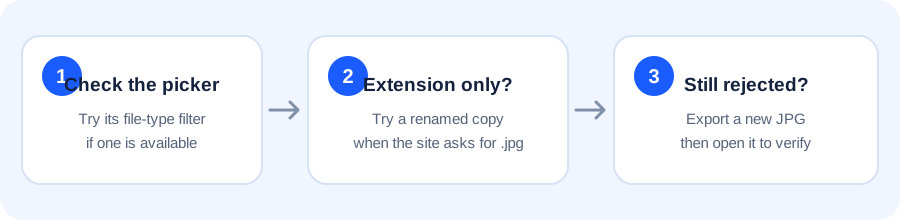
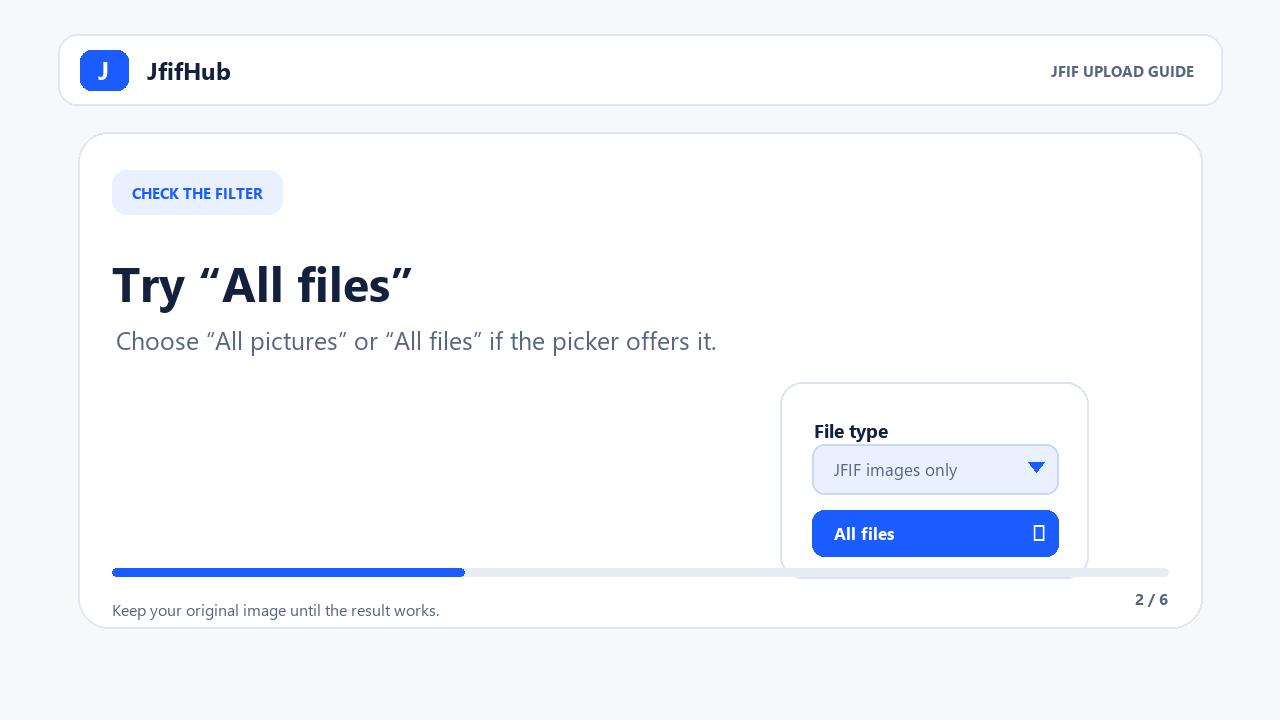
If your JFIF image does not appear in an upload window, first check the file-type filter. Choose “All files” or “All pictures” if the picker offers it. If the destination accepts only .jpg or .jpeg, changing the name to .jpg may fix an extension-only filter, but renaming does not convert the image. For a newly encoded JPG file, use the JfifHub converter.
1. Check the file-type filter
Some upload dialogs show only file extensions selected in a dropdown. If the picker has an “All files” or “All pictures” option, select it and look for the JFIF image again. A file hidden by the picker filter has not necessarily been deleted or damaged. A website can also apply its own file-type rules after you select a file, so showing it in the picker does not guarantee that the upload will be accepted.
2. Show the full filename
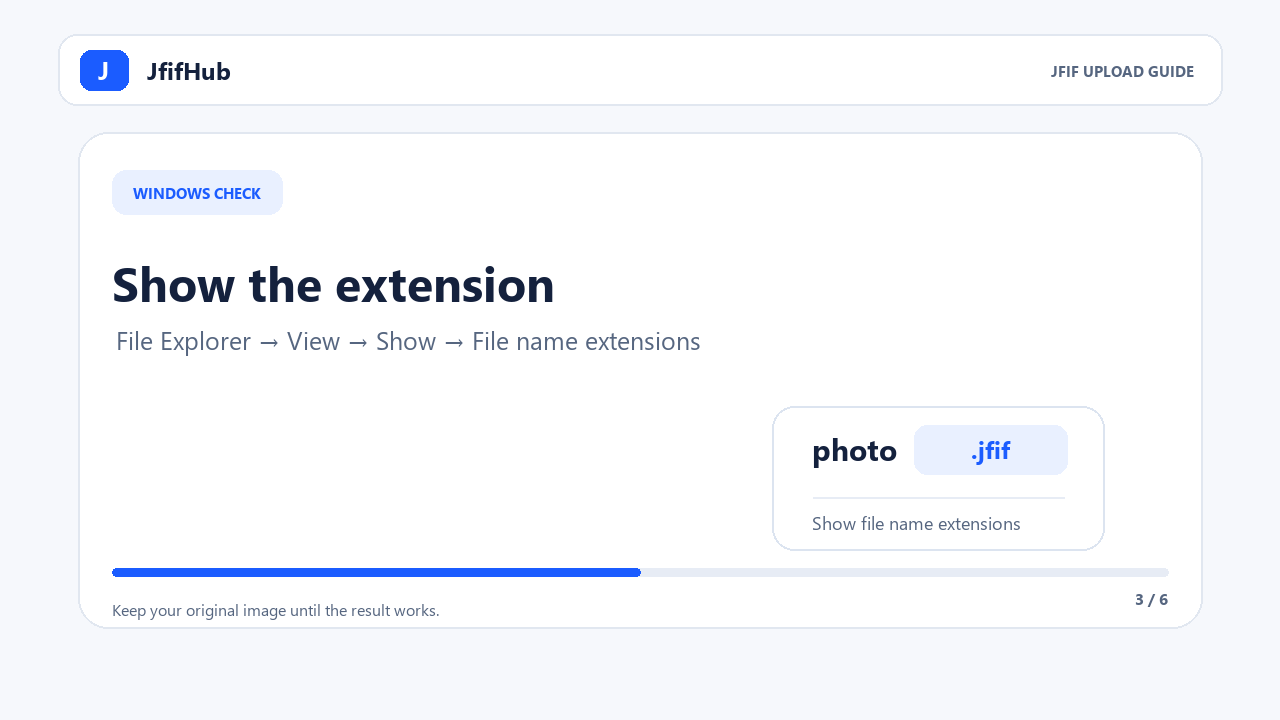
In Windows File Explorer, turn on View → Show → File name extensions so you can see whether the name ends in .jfif, .jfi, or another extension. Microsoft explains that changing a filename extension changes the name, not the underlying file format. Keep the original and work on a copy if you try an extension change.
3. Decide whether to rename or convert
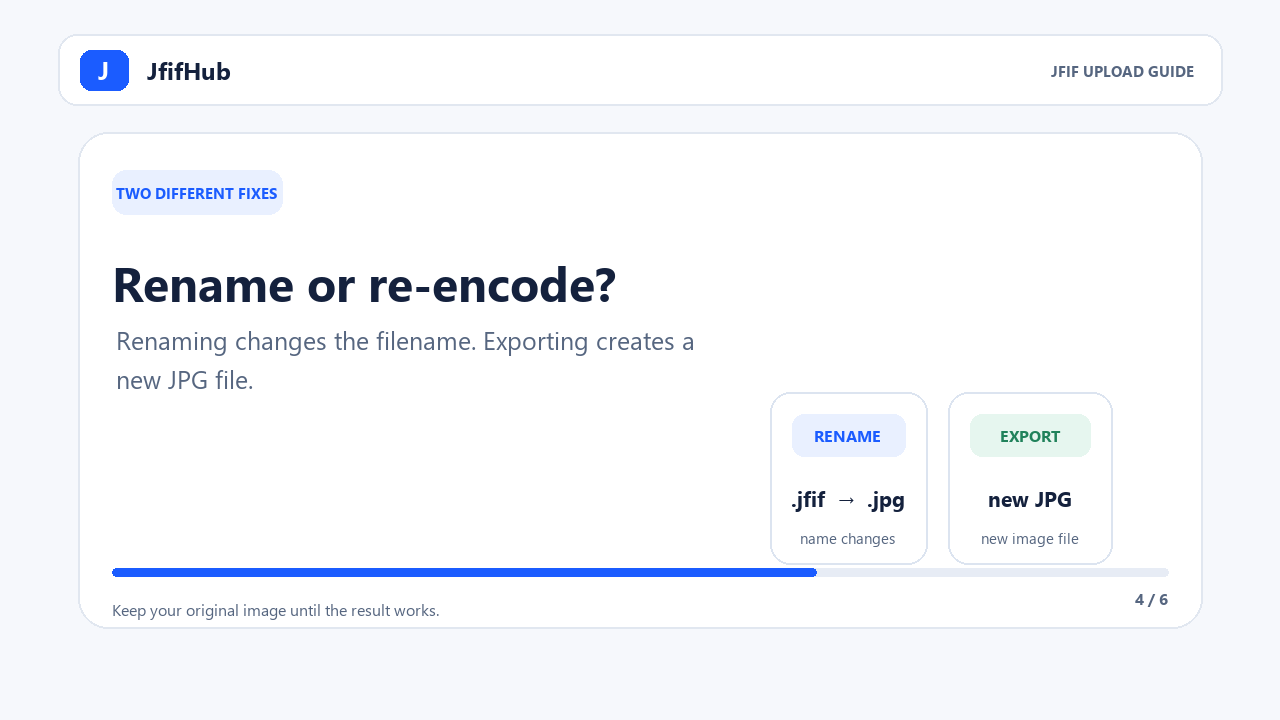
- Try a renamed copy only when the file is a valid JPEG image and the destination appears to reject the suffix. Rename a copy from
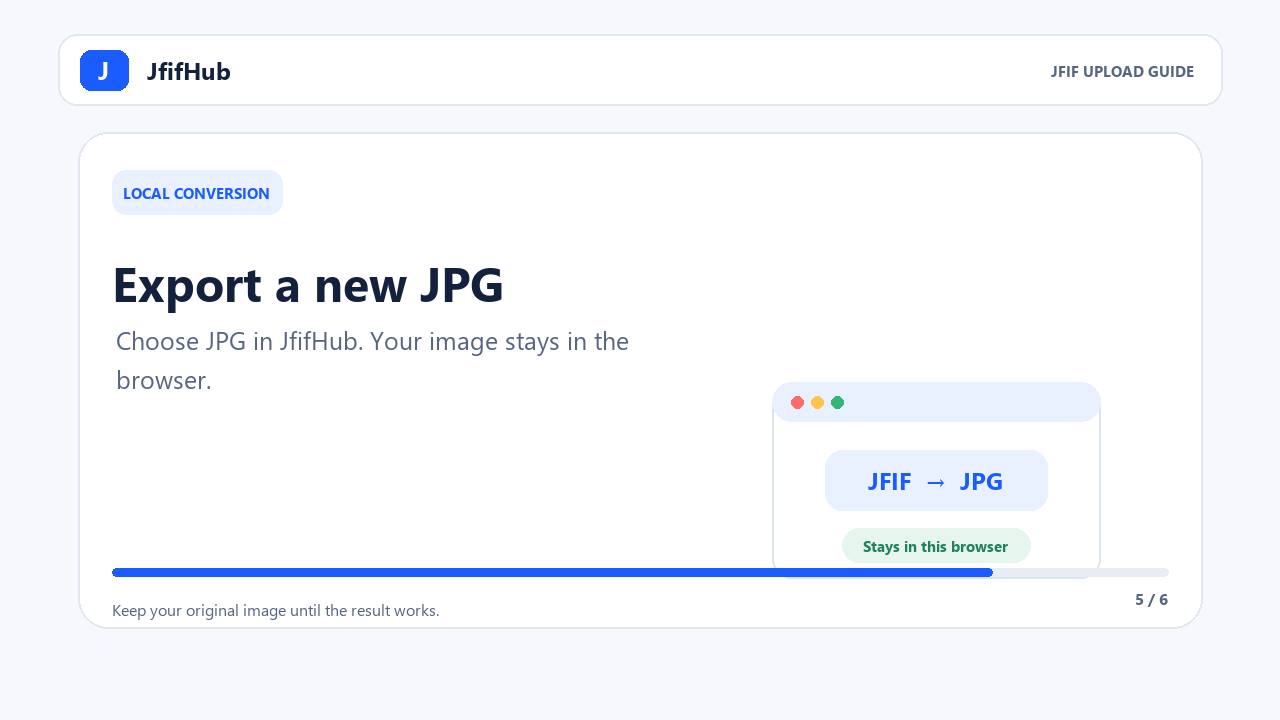
photo.jfiftophoto.jpg. The image bytes are not re-encoded by renaming. - Export a new JPG when the destination still rejects the renamed copy or you need a new JPEG file. Open the JFIF to JPG converter, choose the JPG output, add the image, and download the result. JfifHub processes the image in your browser.
JFIF is a container convention for JPEG-encoded image data. That is why an extension-only change can work for some upload filters, while other sites still require a freshly exported file. The destination's stated requirements decide which fix to use.
4. Verify the result before uploading
- Check that the downloaded filename ends in
.jpgor the extension requested by the destination. - Open the result locally to confirm it displays.
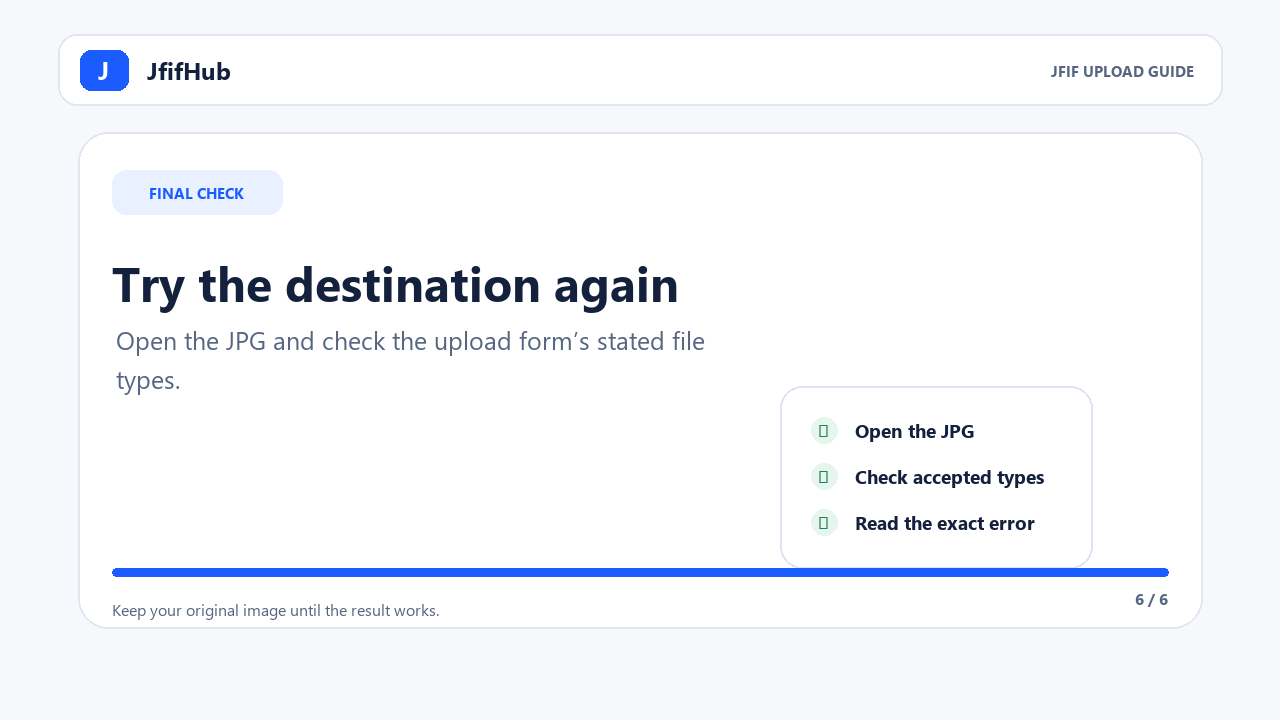
- Return to the upload form and check whether its file-type filter names the extension you are using.
- If the form still rejects it, read the exact error and follow that service's supported file requirements.
Why might a JFIF file not appear at all?
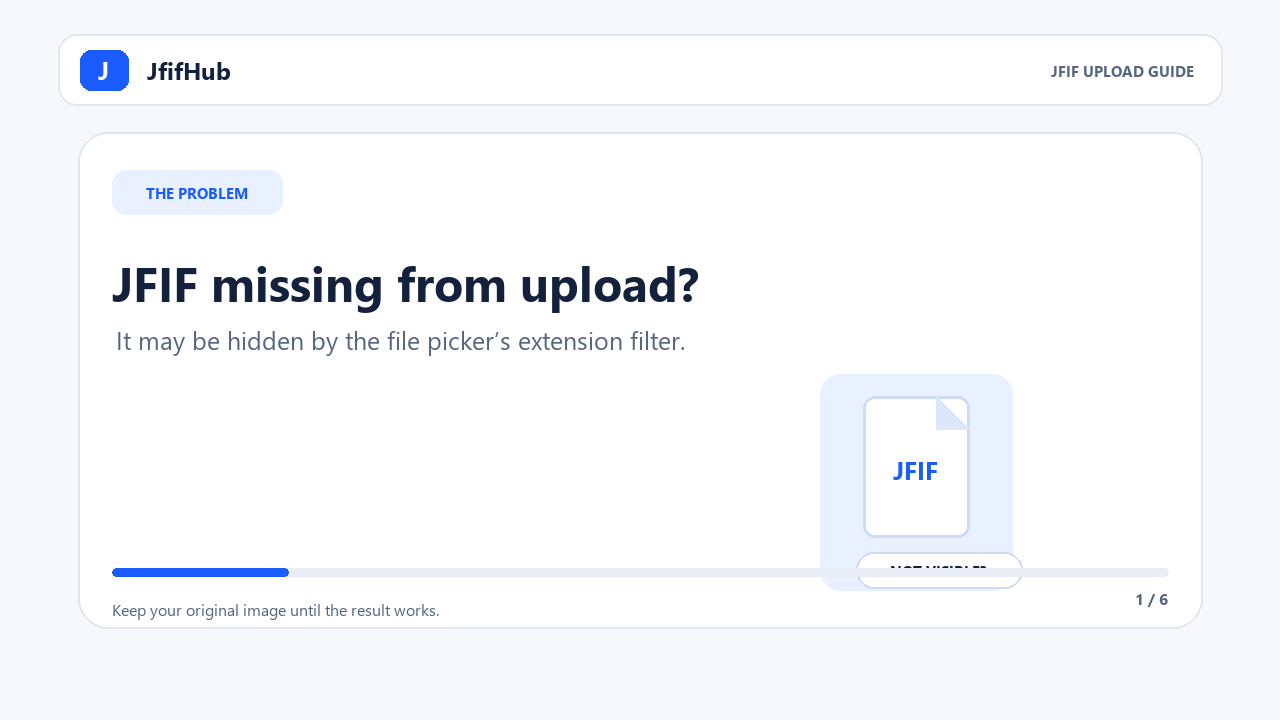
A Microsoft Q&A user described JFIF images no longer appearing in a marketplace upload window after Windows began saving images with that extension. That report is one real example, not proof that every missing file has the same cause. A picker filter, a destination's accepted-extension list, or a damaged file can lead to different symptoms.
The upload-picker checks, illustrated
These six original illustrations show the same steps explained above and in the existing JfifHub upload-picker video. Start with the file filter, keep an untouched copy, then check the destination's own requirements.
Does renaming a JFIF file make a JPG?
No. Renaming changes only the filename extension. To create a new JPG export, use a converter that decodes the image and writes a JPEG output. JPEG re-encoding can change image data, so keep the source file until you have checked the result.
Sources: Microsoft Support: file extensions in Windows; Microsoft Q&A: JFIF images missing from an upload picker; Library of Congress: JPEG File Interchange Format family.