Convert JFIF to JPG in Paint on Windows
To make a JPG copy without uploading your image, open the JFIF in Paint, choose File → Save as → JPEG picture, give the copy a new name, and save it somewhere you can find. Keep the original until the new file opens and the site or app that rejected the JFIF accepts the JPG.
Before you save a copy
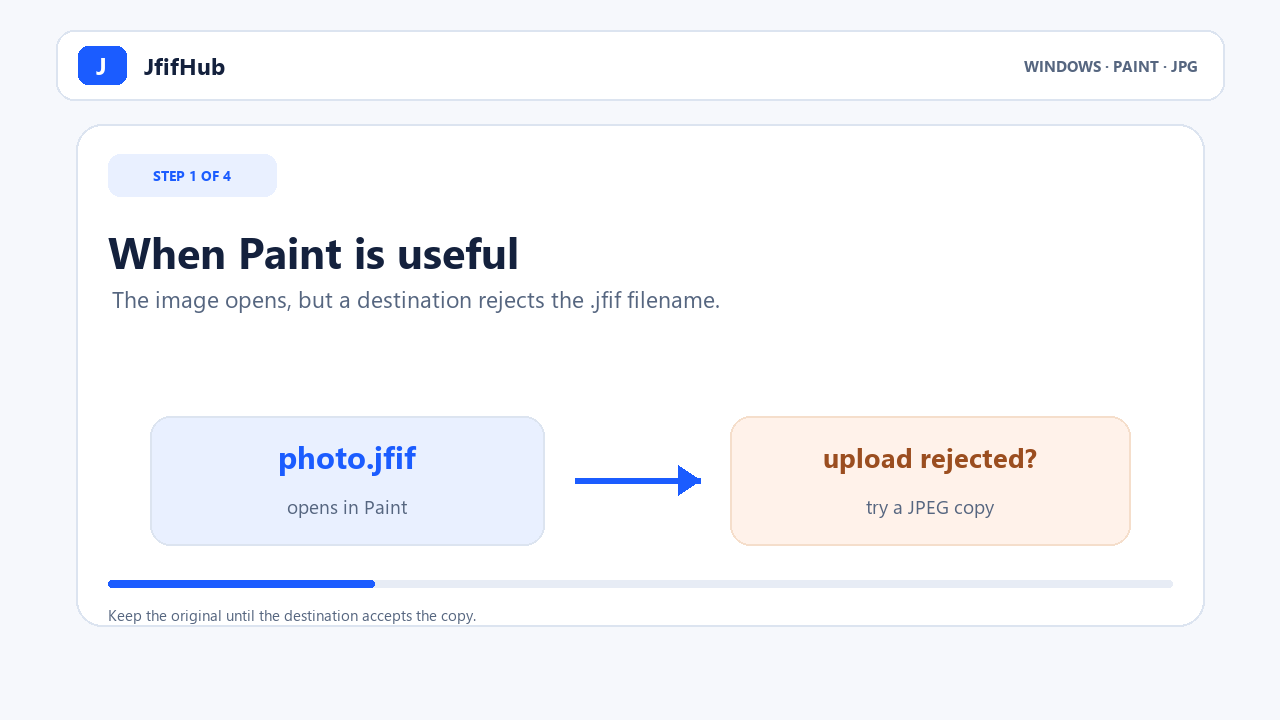
JFIF stores JPEG-encoded image data. Windows' JPEG codec documentation lists support for JFIF 1.02, but an individual upload form may still check the filename extension and hide a file ending in .jfif. Paint is one offline route when the image opens but a destination needs a JPEG file named with a familiar suffix.
First make sure the original is still in its folder. If Windows hides extensions, turn on File name extensions in File Explorer so you can tell photo.jfif from photo.jpg. The original name helps you avoid saving over the source by mistake.
Save a new JPG from Paint
- In File Explorer, right-click the JFIF image and choose Open with → Paint. If Paint is not in the short menu, look under Choose another app.
- Check that the image is visible in Paint. If it does not open or looks damaged, stop; saving it under another extension will not repair unreadable image data.
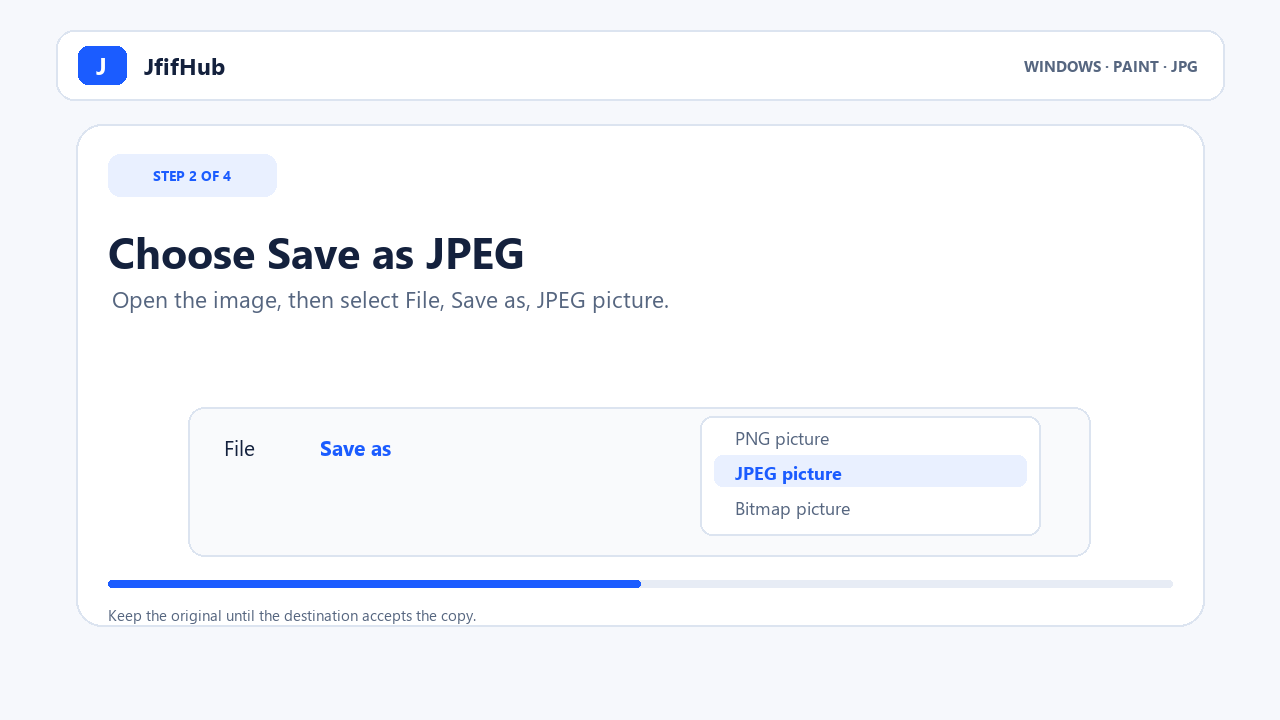
- Choose File → Save as → JPEG picture. Microsoft Q&A support guidance describes this Paint route for saving a JFIF as JPEG. Menu wording can vary by Paint version.
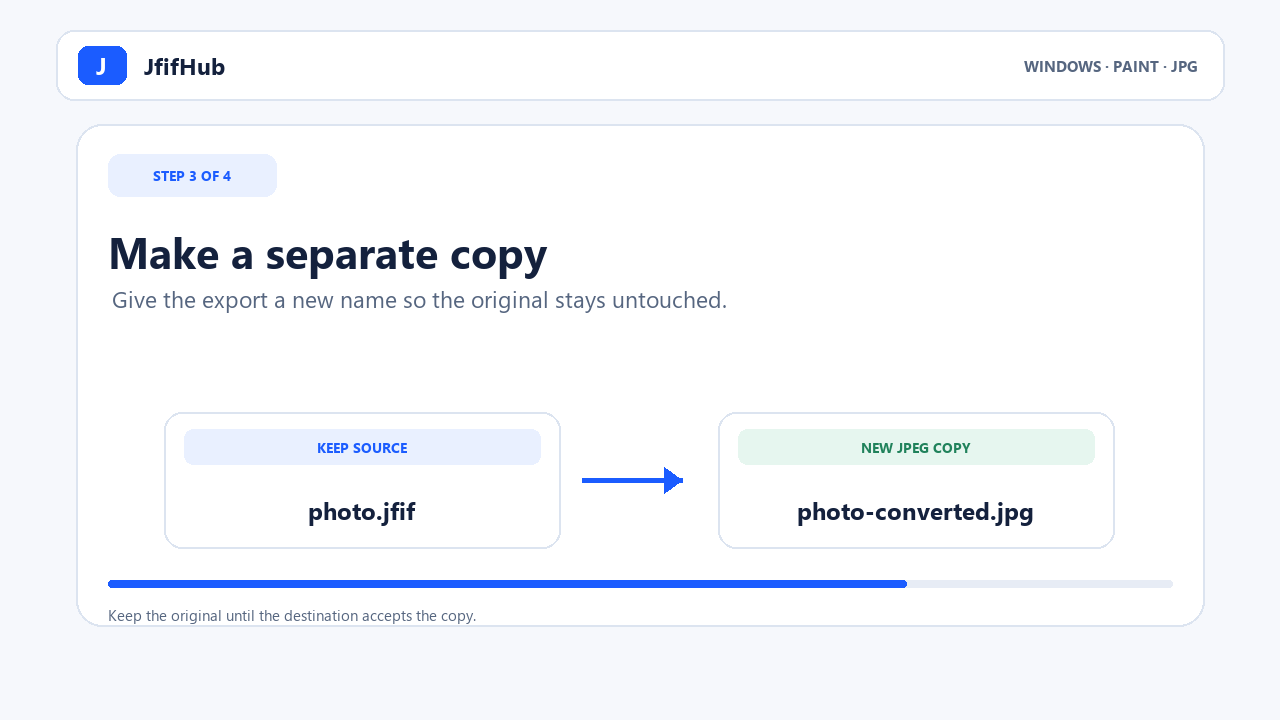
- In the save dialog, use a new filename such as
photo-converted.jpgand select a location separate from the original if that is easier to track. Confirm the file type is JPEG before saving.
Choose Save as when you need to preserve the source. Paint versions can save some JPEG edits in place; a separate output name makes it clear which file is the original and which is the new export.
Check the JPG before you upload it
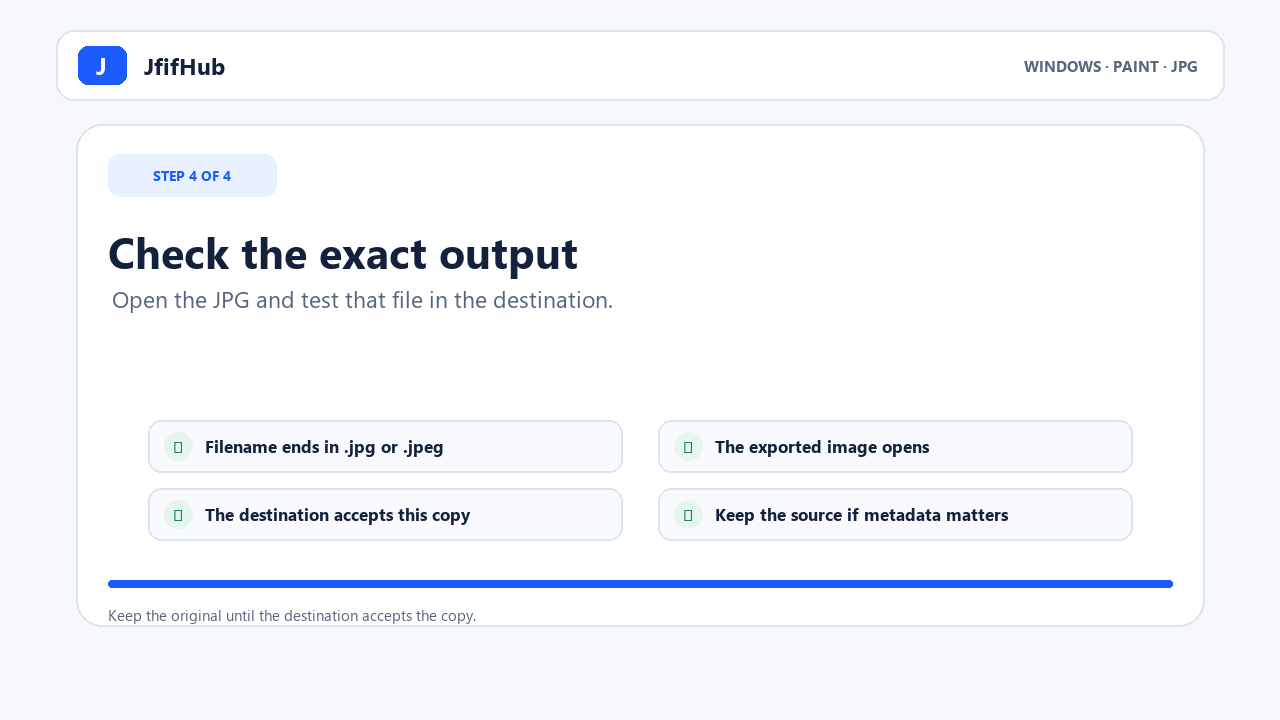
- In File Explorer, confirm the new filename ends in
.jpgor.jpeg. - Open the new file and make sure it displays. If the image's dimensions matter, compare them with the original in the file's Properties.
- Try this new file in the exact upload form that rejected the JFIF. A visible file in the picker does not guarantee that the site will accept it.
- Keep the original until the destination accepts the JPG. A JPEG save writes a new image file; do not assume it preserves every byte or metadata field from the source.
Paint does not show “JPEG picture”
Check that the image is open in Paint and that you chose the Save as submenu rather than ordinary Save. If JPEG is still unavailable, use the JfifHub browser converter to create a separate JPG download; the conversion runs locally in your browser. If the source will not open in Paint or the downloaded output is rejected, read the destination's exact format and size requirements before trying another change.
Quick answers
Does saving as JPEG only rename the JFIF file?
No. Saving a new JPEG picture creates an output file. Renaming a file only changes its filename; it does not rewrite its contents. Use a new name so you can keep both files.
Will the JPG look exactly the same?
Do not assume a newly saved JPEG is byte-for-byte identical to the source. Check the output at the size and in the app where you plan to use it, and keep the original if fidelity matters.
Can I keep using the JFIF file?
If the app that needs the image accepts JFIF, there is no need to make another copy. Use this Paint workflow when you specifically need a separate JPEG-named output.
Sources: Microsoft Learn: JPEG format overview and JFIF 1.02 support; Microsoft Q&A: opening a JFIF in Paint and using Save as; Microsoft Support: changing an extension does not convert a file; Microsoft Paint release notes: JPEG edits may save in place in some versions.