Mac JFIF to JPG: Preview and Finder Extension Fix
Open the JFIF in Preview and choose File → Export → JPEG to create a new JPEG copy. If the website accepts .jpg but the exported file appears as .jpeg, first show filename extensions in Finder. When the file is confirmed as JPEG and the site is checking only the suffix, make a copy and change that copy's ending from .jpeg to .jpg; this changes the name, not the encoded image.
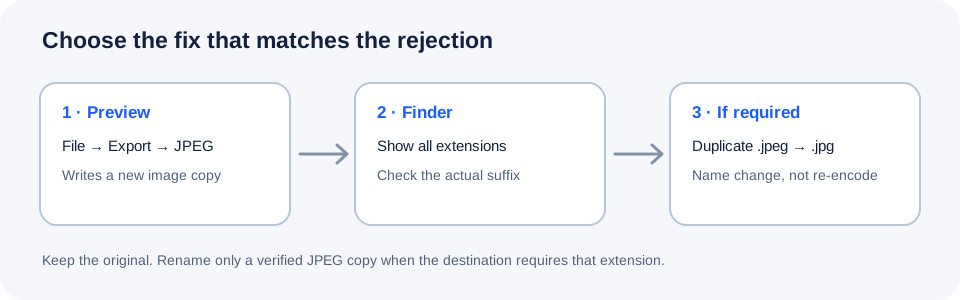
First check what the website is rejecting
A JFIF file already contains JPEG-encoded image data. The Library of Congress lists .jpg, .jpeg, and .jfif among JFIF-family filename extensions. So if an upload form accepts .jpg but rejects .jpeg, it may be enforcing a filename rule rather than asking for a different image encoding. That is a practical distinction: a suffix-only problem may not need another JPEG export, while a request for a newly encoded image does.
Do not infer the real ending from a Finder name with no visible suffix. macOS can hide filename extensions, and adding .jpg to a name that already ends in a hidden .jpeg can create a confusing double ending. Reveal extensions before changing anything.
Export a separate JPEG copy in Preview
- Open the image in Preview. If double-clicking does not open it, Control-click the file, choose Open With, and select Preview. Continue only if the image displays correctly.
- Choose File → Export. In Format, select JPEG. Apple documents this export path and says JPEG quality can be adjusted in the export options.
- Give the output a new name or save it in a different folder, then click Save. Keep the source file until the destination accepts the new copy.
- In Finder, select the exported file and choose File → Get Info (or press Command-I). Read the full name and the file's Kind before deciding whether another export is needed.
Exporting creates a JPEG output; it is useful when you need Preview to write a fresh file. It can also apply a new JPEG quality setting, so do not export repeatedly just to change the suffix. Keep the original when image fidelity matters.
If the upload form insists on .jpg
Use this branch only when Preview has successfully exported a JPEG and the destination explicitly lists .jpg as accepted but refuses the equivalent .jpeg ending:
- In Finder, turn on Show all filename extensions from Finder → Settings → Advanced. On older macOS releases the menu may be named Finder → Preferences.
- Make a duplicate of the exported JPEG so the verified original remains untouched. Rename the duplicate's final extension from
.jpegto.jpg, leaving the rest of the filename unchanged. - If macOS warns that changing an extension may affect the file, choose the option to use
.jpgonly for this duplicate. Reopen it in Preview. If it still displays and Finder identifies it as a JPEG image, try that copy in the form.
This is a narrowly scoped compatibility workaround, not a way to convert arbitrary files by renaming. JFIF and JPEG use compatible image data, and both endings are recognized in the JFIF-family references. If the form still rejects the file, stop renaming: check the site's stated size, dimensions, and accepted file types, or use the form's support route. The extension alone cannot diagnose those separate restrictions.
When should you actually export again?
- Preview cannot display the source: do not force a new suffix. Confirm you selected the intended file and that the image opens in a compatible viewer.
- The site requires JPEG data and the source is not a valid JPEG: use an image app that can read the source and export it as JPEG. A filename edit cannot rewrite image data.
- The site only rejects
.jpegwhile explicitly allowing.jpg: after confirming the file is JPEG, test a duplicate with the shorter suffix before recompressing. - The file has the right suffix but still fails: follow the destination's exact size and dimension limits. Do not assume a new export will fix an unrelated rule.
Quick answers
Does Preview export a JPG or a JPEG?
Preview's format menu calls the format JPEG. The resulting visible filename ending can depend on the export and Finder settings. Show all extensions to check the actual saved name.
Is changing .jpeg to .jpg a second conversion?
No. It edits the filename ending only. Use it only for a confirmed JPEG when the receiving form documents or demonstrates a suffix-only restriction.
Why can't I see .jpeg or .jfif in Finder?
Filename extensions may be hidden. Turn on Show all filename extensions in Finder Settings → Advanced, or inspect one file with Get Info.
Sources: Apple Preview User Guide: export image file types and adjust JPEG quality; Apple Mac User Guide: show filename extensions; Library of Congress: JFIF format description and recognized extensions; Apple Support Community: a Preview export extension hidden in Finder; Public Mac discussion: JFIF opening and Finder association reports.