Convert From JFIF to JPG: Rename or Re-Encode?
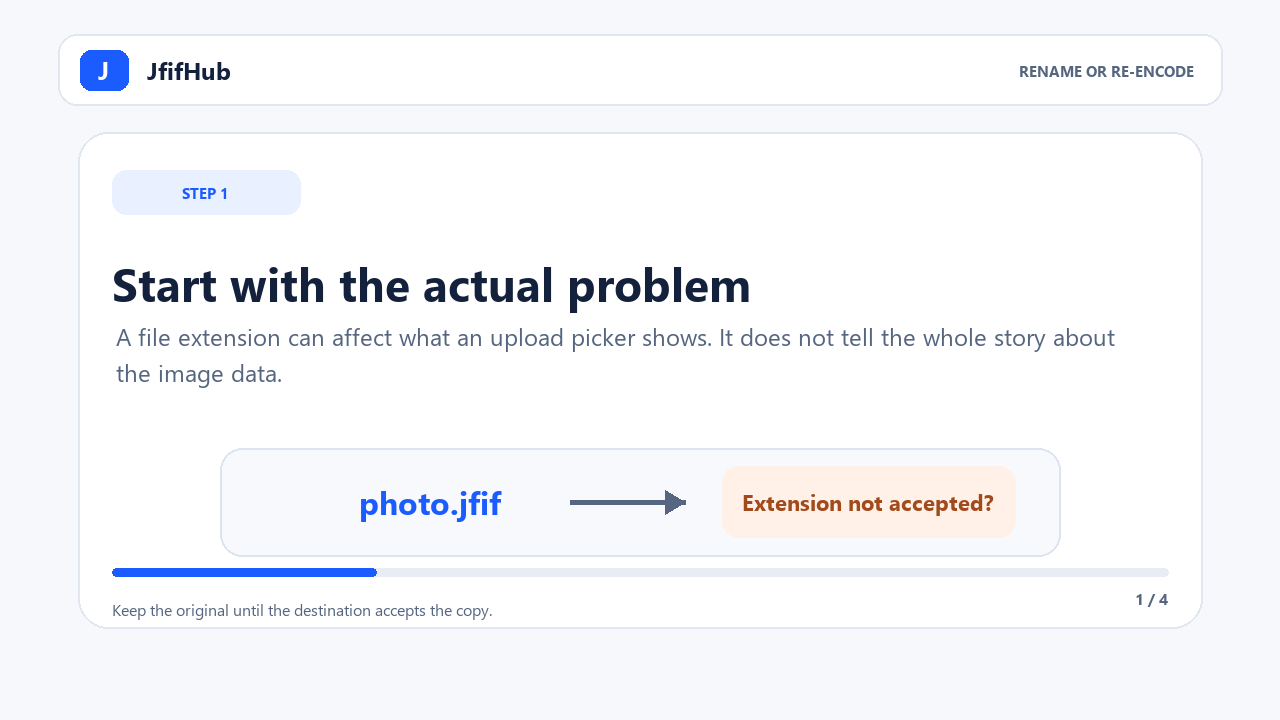
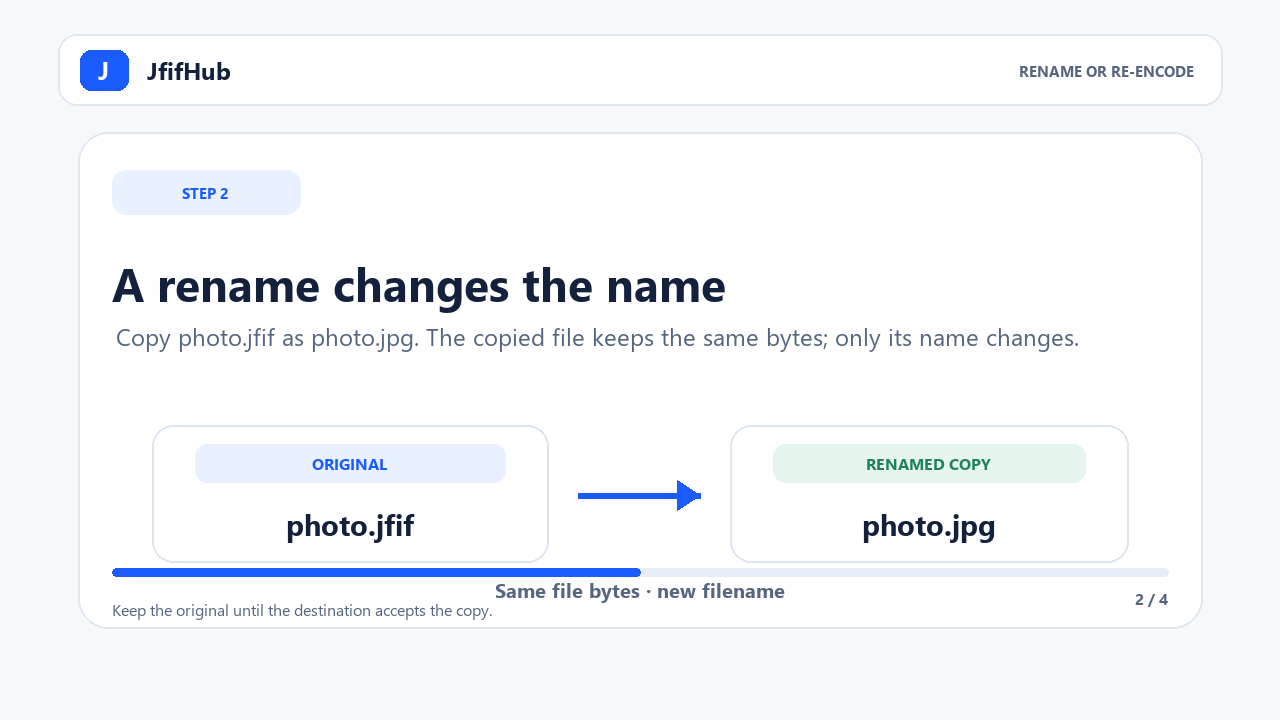
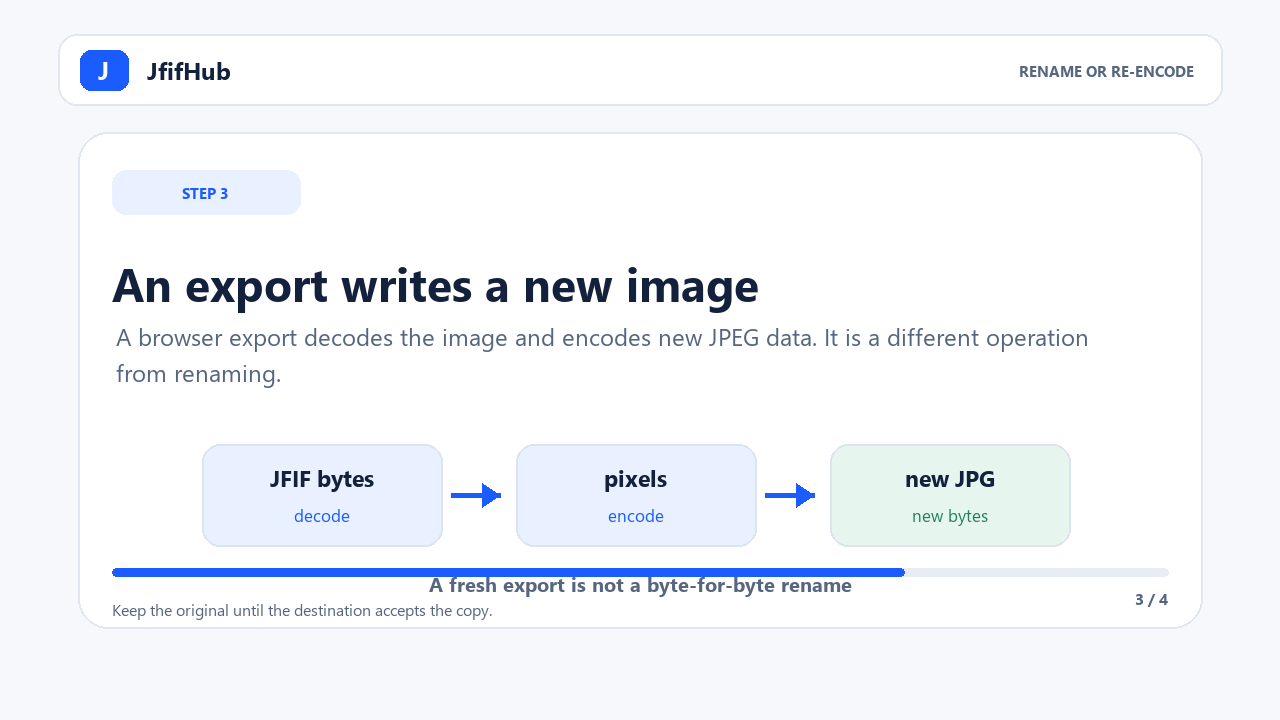
Start with the error you need to fix. If a destination rejects a file only because its name ends in .jfif, try a copy named with .jpg first. If the destination still cannot read it, export a JPG with a converter. A rename changes the filename; a Canvas-based export decodes and encodes the image again, so it creates new JPEG data.
This distinction helps you choose the smallest change that solves the problem. JFIF is a file interchange format for JPEG-coded images, and JPEG images are commonly labeled with extensions such as .jpg, .jpeg, or .jfif. The extension is a clue for software, but changing it does not rewrite the bytes inside the file.
Use this two-step check
- Check whether the file opens. Open the original JFIF in an image viewer. If it displays correctly, the image itself is readable on that device.
- Check what the destination requires. If a form or app reports that the extension is unsupported, save a separate copy with a
.jpgname and try that copy. Keep the original so you can return to it.
If the renamed copy is rejected or appears broken, use a converter to produce a fresh JPG. You can convert a JFIF file to JPG in your browser; the conversion runs on your device and the result can be downloaded as a separate file.
Verify whether a rename kept the exact bytes
A filename and a file's contents are separate things. If you need to confirm that a .jfif copy was only renamed, compare the SHA-256 values of the original and renamed copy. Windows PowerShell's Get-FileHash uses SHA-256 by default. Replace YOUR-NAME below with your Windows account folder, then run both paths in PowerShell:
$source = 'C:\Users\YOUR-NAME\Pictures\photo.jfif'
$renamed = 'C:\Users\YOUR-NAME\Pictures\photo.jpg'
Get-FileHash -LiteralPath $source, $renamed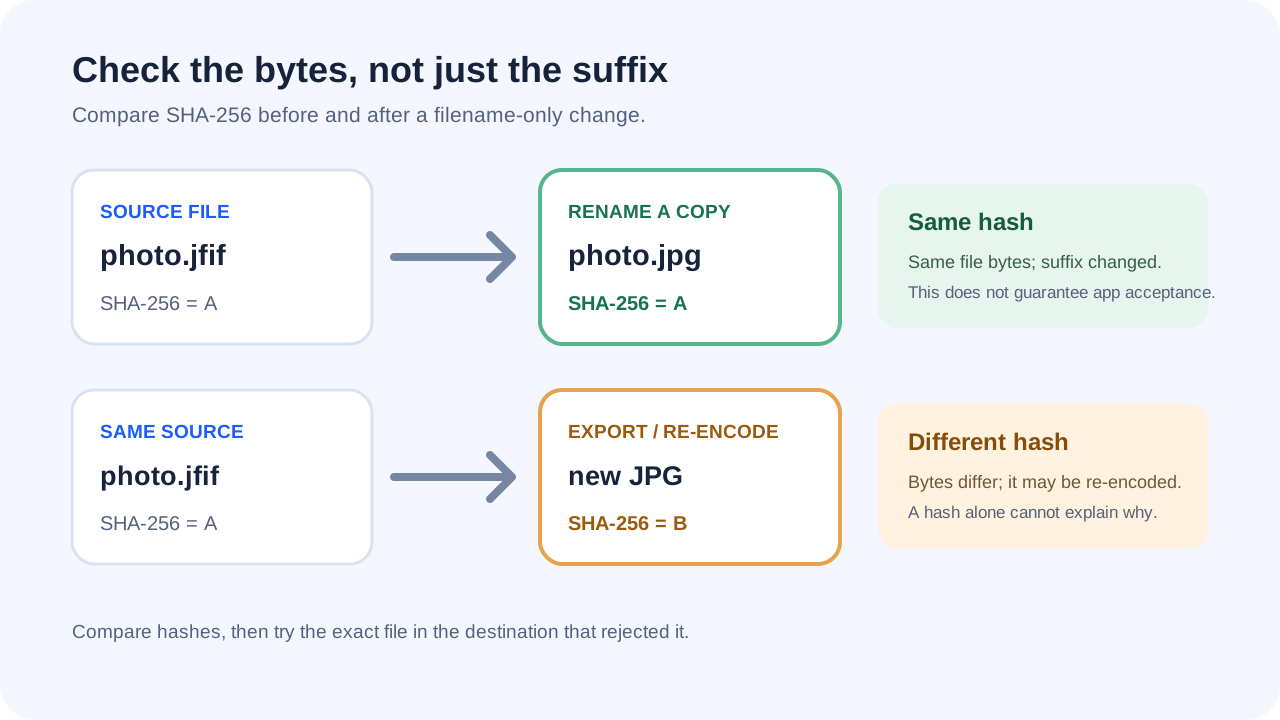
If the hash values match, the two files contain the same bytes. That confirms the copy was not re-encoded. A different hash only tells you the files are not byte-identical: it does not by itself prove that pixels were recompressed, because other file data could also differ. And matching hashes do not prove that a particular website or app will accept the extension; test the copy in that destination.
Local check: I generated a 32 × 24 JPEG with a JFIF header, copied its bytes to a .jpg filename, then separately exported another JPEG at a lower quality setting. The source and renamed copy both produced SHA-256 7AC310ACBDCC87D0A4CBD1F344ECA3B10B95BE4730D2C4A5715B749FD46D9F7F; the separate export produced 2FDD8BA404F8C5D254DD38F58743E9E80F5C38244933426875B31F01A9A54957. This validates the comparison steps on that generated sample only. It does not test JfifHub's online export, every JFIF file, or a destination's acceptance rules.
Check the Path column in PowerShell as well as the hashes, so you know both rows refer to the intended files. If Windows Explorer hides filename extensions, turn them on before making the test copy; otherwise it can be easy to rename the wrong item. Get-FileHash only reads the files. It does not rename, overwrite, or alter either copy. If only one result appears, correct the path list and run the comparison again. Keep the original until the destination accepts the tested copy.
What changes during a JPG export?
There are two different operations that are often both called “conversion.” A filename change leaves the image bytes untouched. A re-encode reads the image pixels and writes a new JPEG file. JfifHub uses the browser’s canvas export path for its JPG output, with the selected quality setting. That is a real export, not a byte-for-byte rename.
JPEG is a lossy format. A quality value of 100 asks the browser for its highest JPEG quality setting; it does not promise that the exported file is identical to the source. Browser encoders can also differ. If preserving the original compressed data matters more than changing the file format, keep the original and test a renamed copy before exporting.
Check the downloaded file before you send it
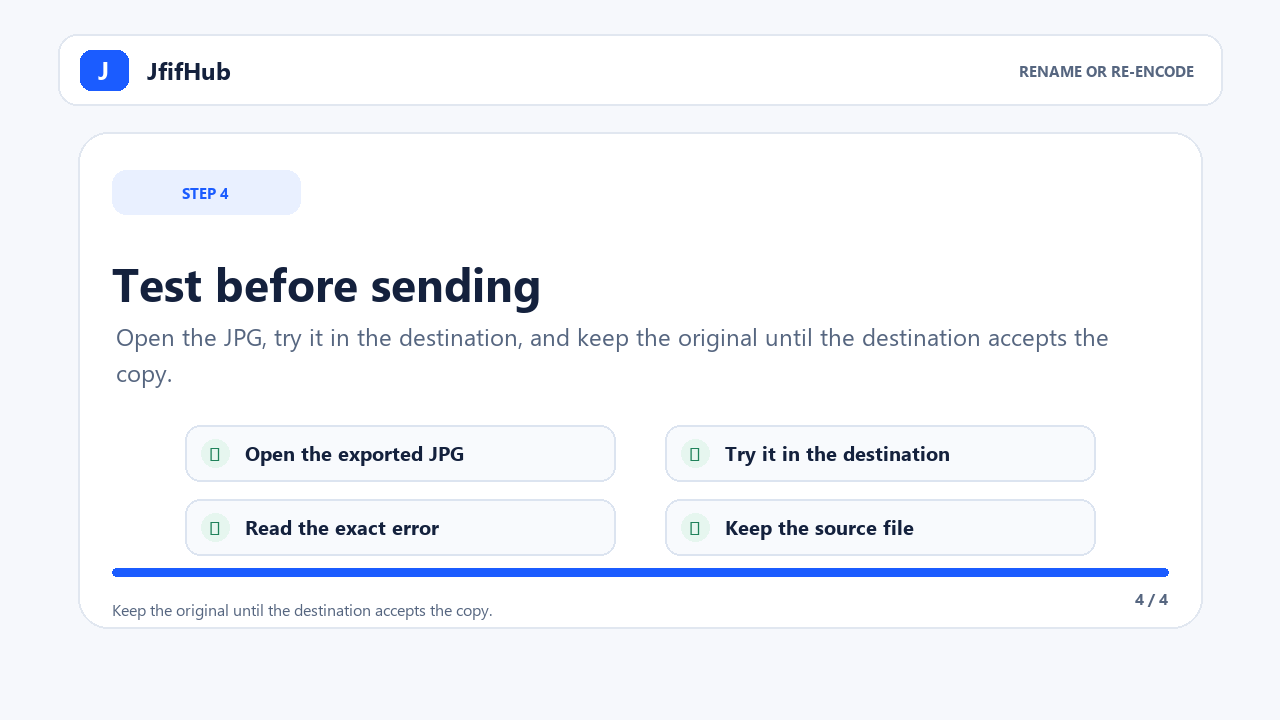
- Confirm the downloaded filename ends with
.jpgor.jpeg, whichever the destination accepts. - Open the downloaded file. Check that it displays, and compare the visible dimensions with the original if size or layout matters.
- Try the file in the exact form, editor, or app that rejected the JFIF. A successful download alone does not confirm that another service accepts it.
- Keep the source until the destination accepts the new file. Do not overwrite your only copy.
Why a JFIF file may be rejected
Some upload forms use a short allow-list of filename extensions even when the image data is JPEG. Other errors can come from a damaged file, a size limit, or a service-specific rule. Changing .jfif to .jpg can address an extension check, but it cannot fix unreadable image data or a separate size restriction. Read the exact error and test one change at a time.
Quick answers
Is JFIF already a kind of JPEG image?
JFIF describes how JPEG-coded image data is arranged for exchange. It is closely related to JPEG, but applications may still treat the filename extensions differently.
Will converting JFIF to JPG always preserve quality?
No converter should promise that every re-encoded JPEG is identical to its input. A simple filename change preserves the original bytes; a new JPEG export encodes the image again. Keep the original when exact preservation matters.
Should I choose JPG or JPEG?
Choose the extension requested by the destination. If it accepts either, both are common filename extensions for JPEG images. The JfifHub tool lets you download with either suffix.
Can file size alone tell me whether the image was converted?
No. Two files can have the same size but different bytes, or different sizes because of metadata or encoding choices. Compare SHA-256 to check whether the files are byte-identical; then test the exact copy in the app that rejected the original.
Technical references: W3C JPEG/JFIF overview, Library of Congress JFIF format description, Microsoft Learn: Get-FileHash, and MDN Canvas toBlob() documentation.