Batch Convert JFIF to JPG Without Duplicate Output Names
To batch convert JFIF images with JfifHub, select several files in your file manager and drag them together onto the converter. The page processes the dropped images in your browser and offers a “Download all” ZIP. The Choose File button opens a single-file picker, so use drag and drop for a batch.
Before dropping files, give them unique base names. JfifHub replaces each input extension with the selected output extension but does not keep its source-folder path. Two files both named photo.jfif therefore produce two results named photo.jpg.
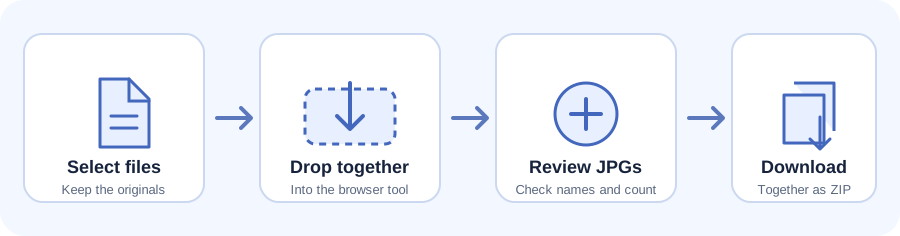
Batch conversion, step by step
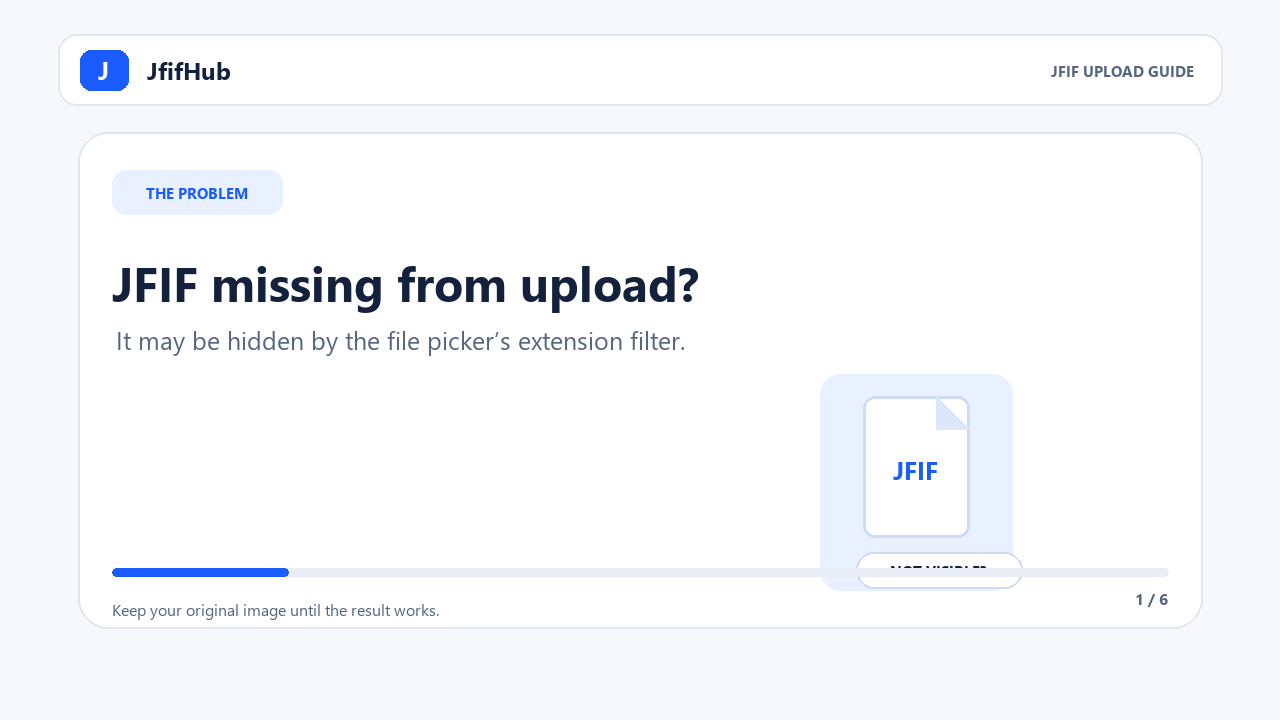
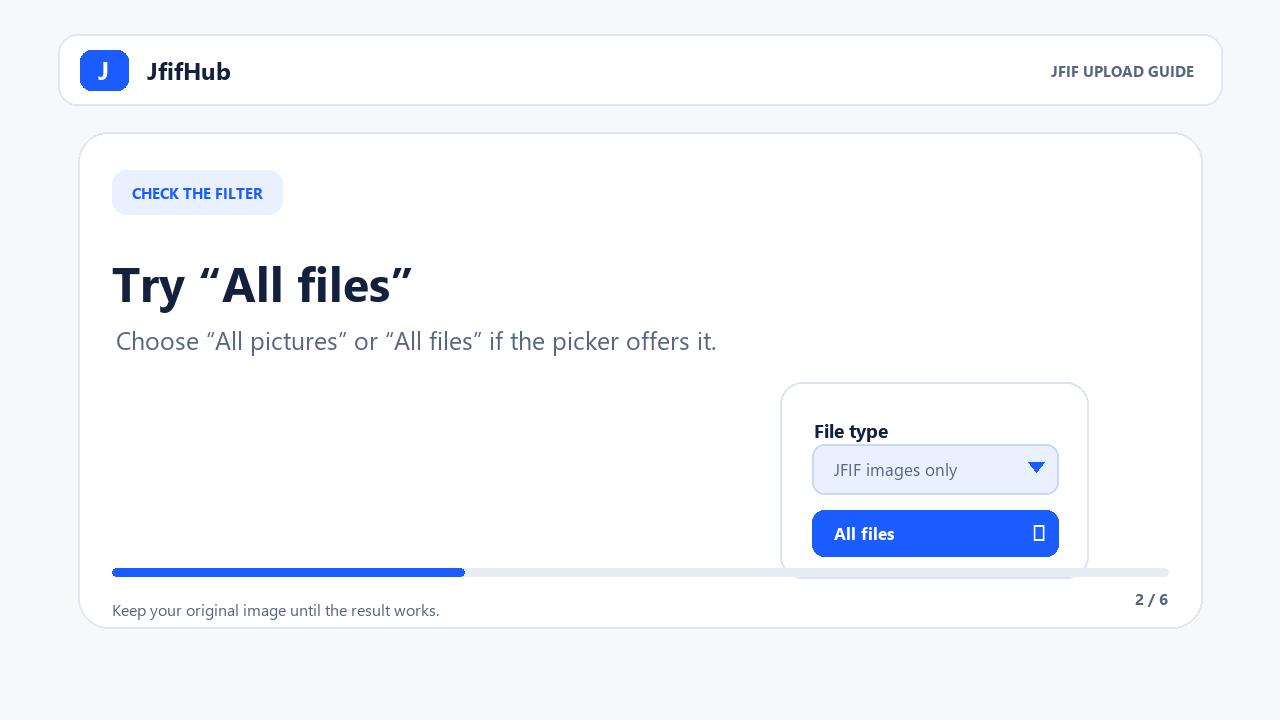
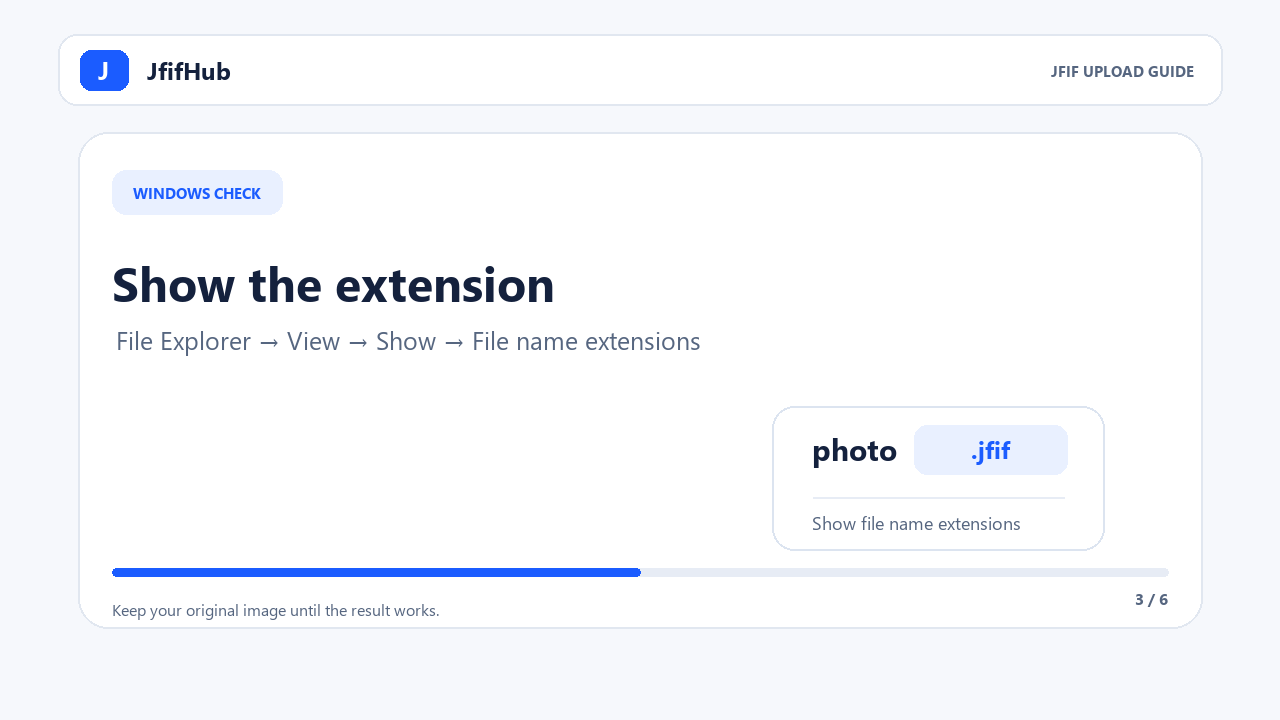
How to convert several files at once
- Open the JfifHub JFIF to JPG converter in your browser.
- Choose the JPG or JPEG output and quality setting before adding files. Keep the originals in place if you may need them later.
- In your file manager, select the JFIF files you want to convert and drag them together onto the converter’s drop area. The tool accepts
.jfif,.jfi, and.jifnames and starts converting as soon as the files are dropped. - Check that each expected filename appears in the result list. The tool processes dropped files one by one.
- Use Download all to save the results together as a ZIP, or download one result at a time.
The browser’s drag-and-drop API exposes dropped files to the page as a file list. JfifHub reads those files locally in the browser; it does not send the image data to a server. Its file picker does not have the HTML multiple option, so selecting several files in the picker is not the batch path on this page.
Check the batch before you leave
- Compare the number of expected files with the number of results shown.
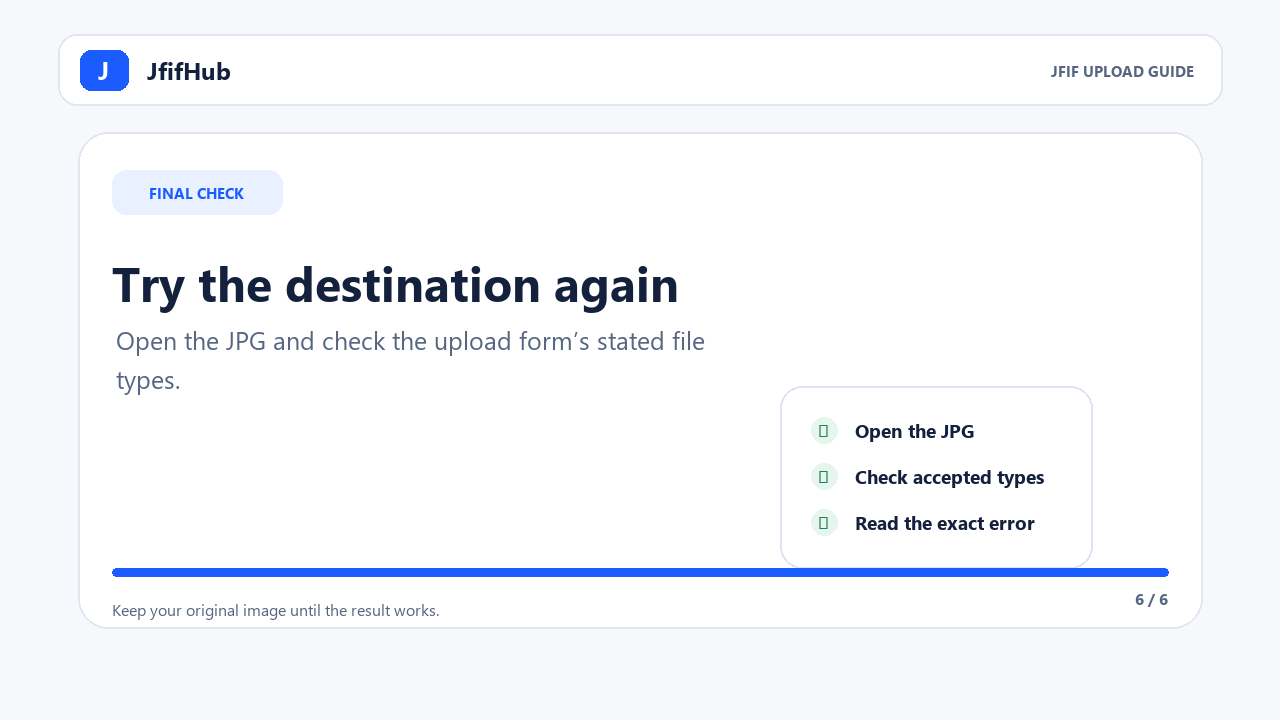
- Open a downloaded JPG to confirm it displays correctly in the app or website that rejected the JFIF file.
- Keep the original JFIF files until you have checked the outputs.
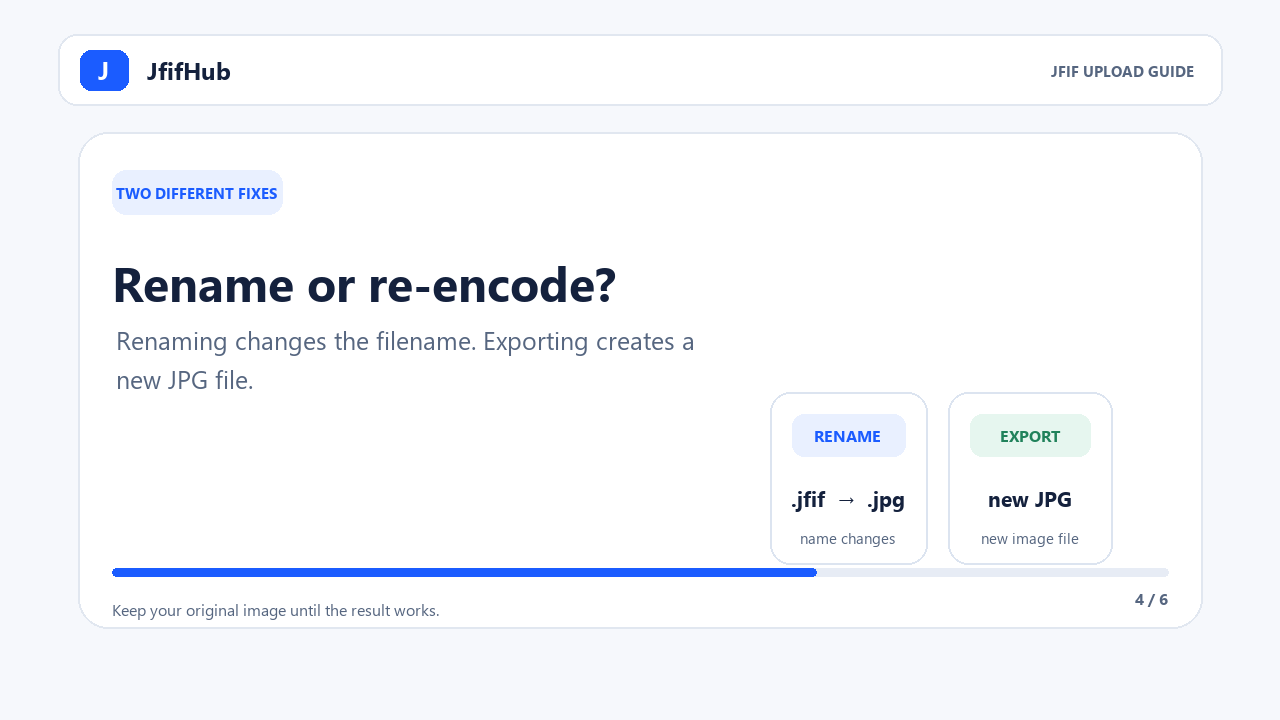
JPEG is a lossy format. Exporting an image as a new JPEG can change image data, so do not treat the output as a byte-for-byte copy of the source. If an upload form rejected only the filename extension, the guide to renaming versus re-encoding a JFIF explains the difference.
Avoid duplicate names in a batch
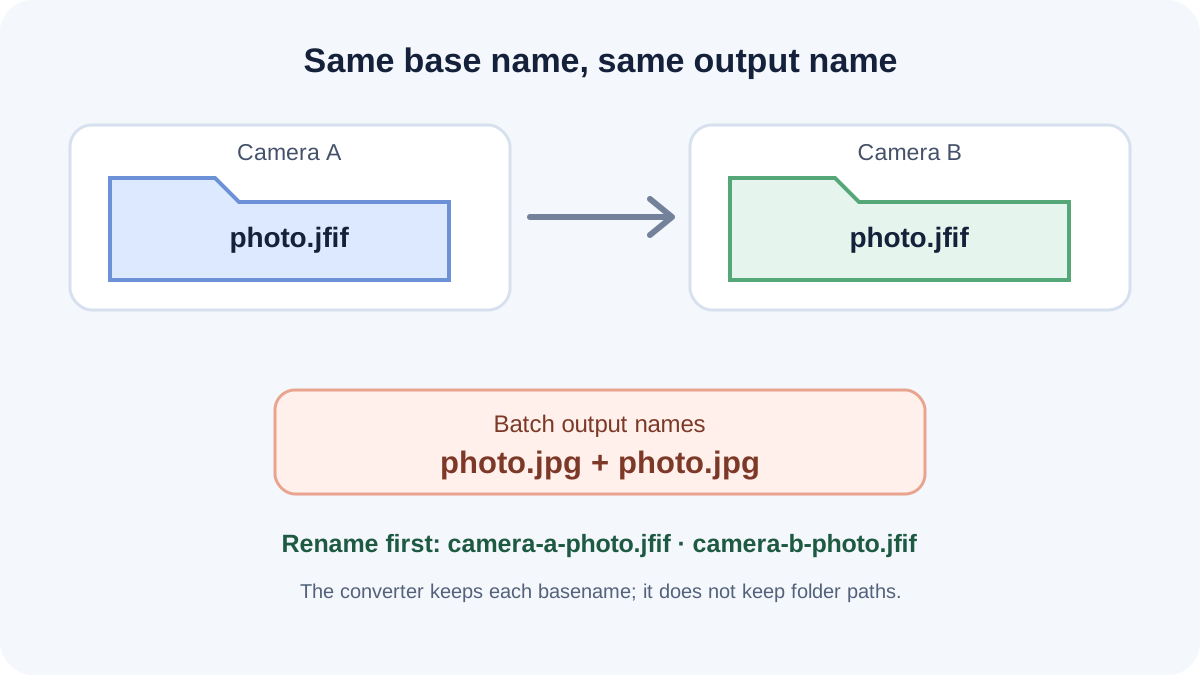
The file name shown to a browser page does not include the original folder path. JfifHub's current converter uses that name as the output base and changes its extension. So Camera A/photo.jfif and Camera B/photo.jfif appear as two photo.jpg results; the ZIP also contains entries with that same name. To keep the files distinguishable after extraction, rename the sources first (for example, camera-a-photo.jfif and camera-b-photo.jfif) or convert them in separate batches. This describes JfifHub's current naming behavior, not every converter or ZIP extractor.
Why can’t I select a batch with Choose File?
The converter’s current file input omits the HTML multiple attribute, which is what enables multi-selection in a file picker. The drop area accepts the list of files sent in a drag operation, so drag selected files from your file manager when you need a batch.
Does batch conversion upload my images?
No. The JfifHub page uses browser-side image processing. The selected files remain in the browser session; there is no account or server upload step in this static tool.
Sources: MDN: files exposed by a drag-and-drop operation; MDN: the file input and its multiple-file option; MDN: File.name excludes the source path. The single-file picker, multi-file drop behavior, and output-name construction described here were checked against JfifHub’s current page and script.