Convert JFIF to PDF on Windows
For one JFIF picture on Windows, open the image in Paint or another image editor, choose Print, select “Microsoft Print to PDF” if it appears, then save the PDF. Review the print preview first: paper size, orientation, and “fit to page” settings can change the layout. This workflow prints the picture into a PDF; it does not turn the image into editable text.
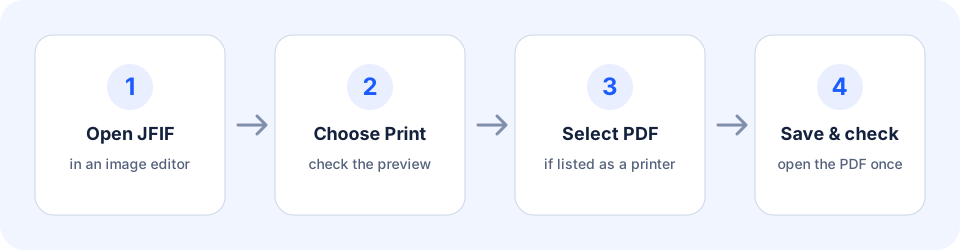
Watch the six-step Windows walkthrough
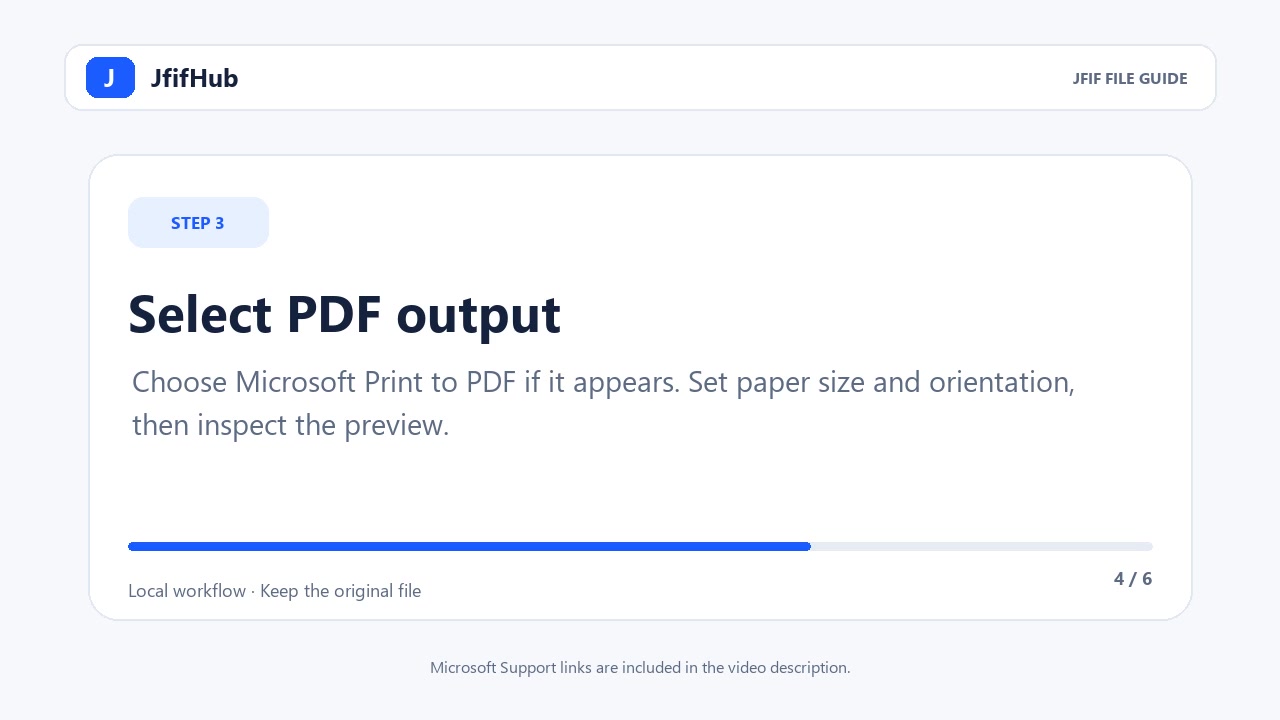
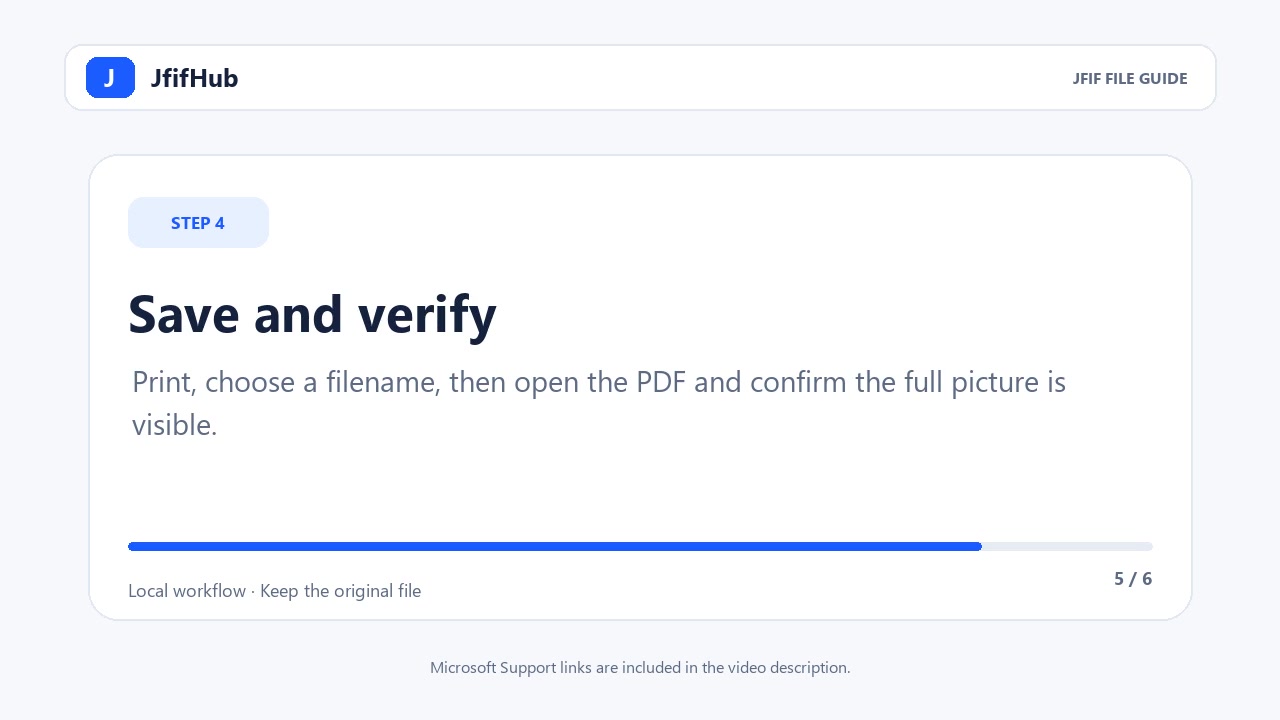
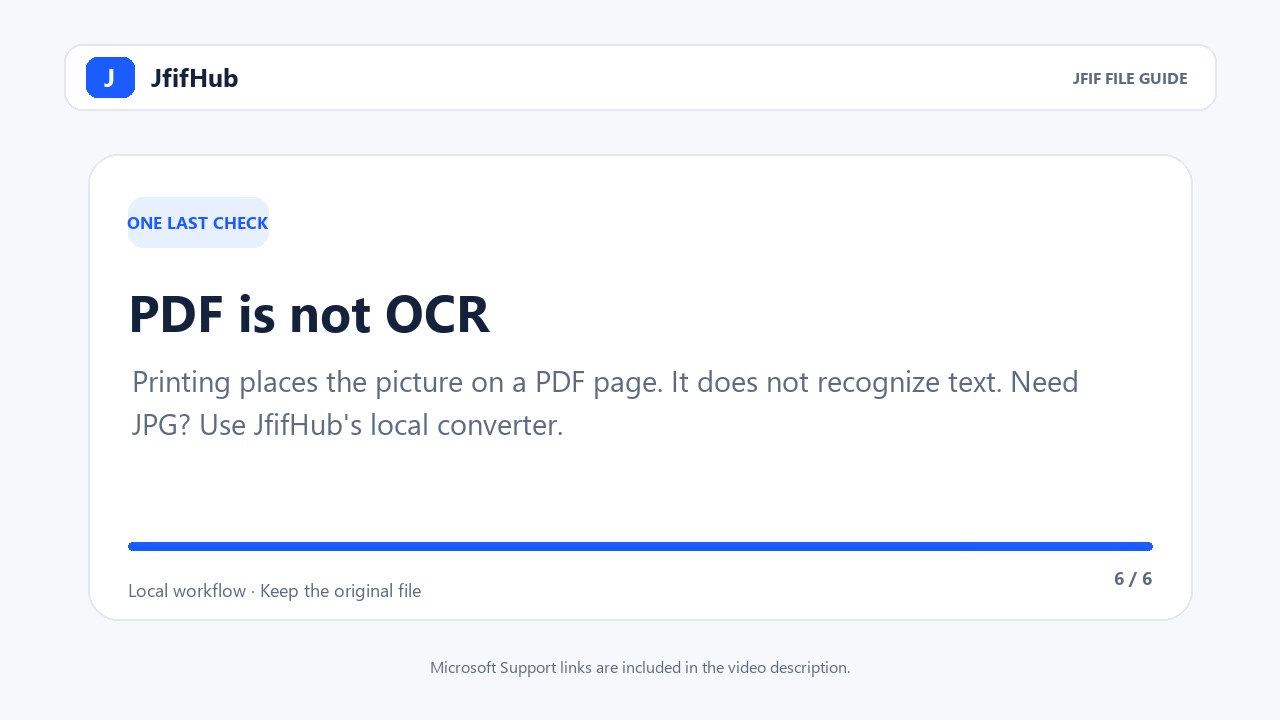
These stills follow the narrated video below: keep the source, open it in an image editor, choose Print, inspect the printer and preview, save the PDF, then check the result. Printer names and layout options vary by Windows setup.
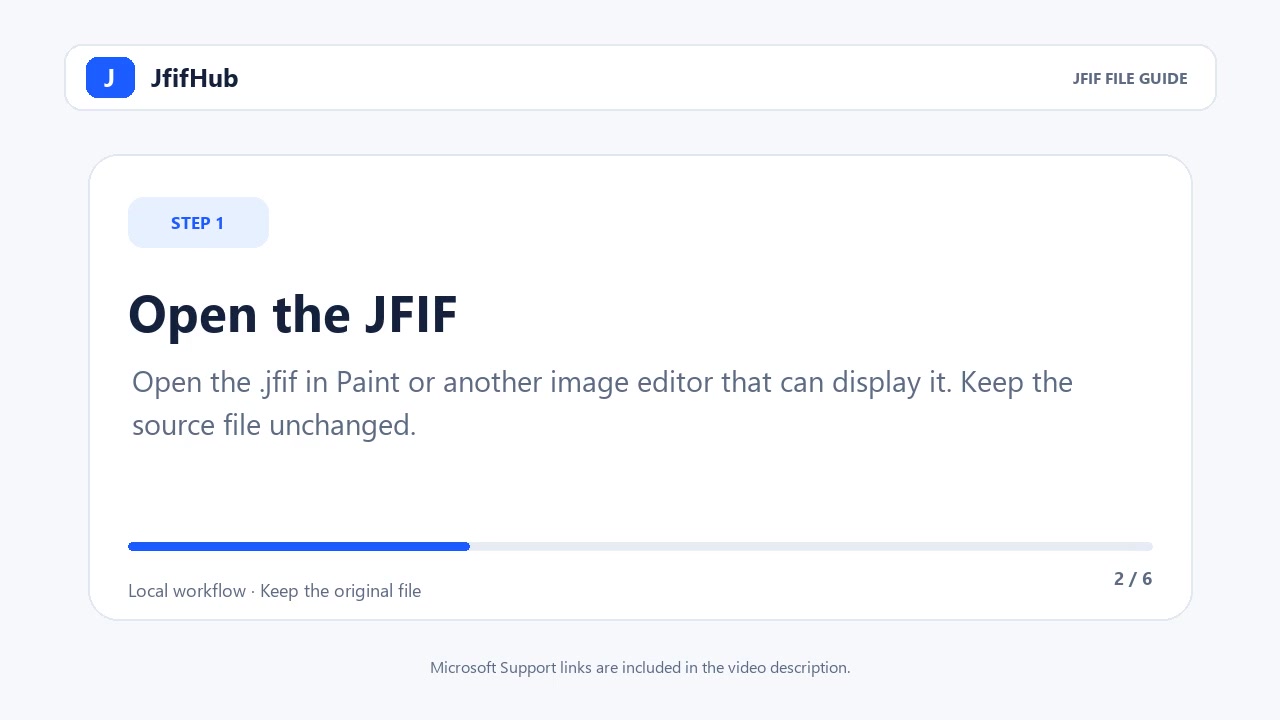
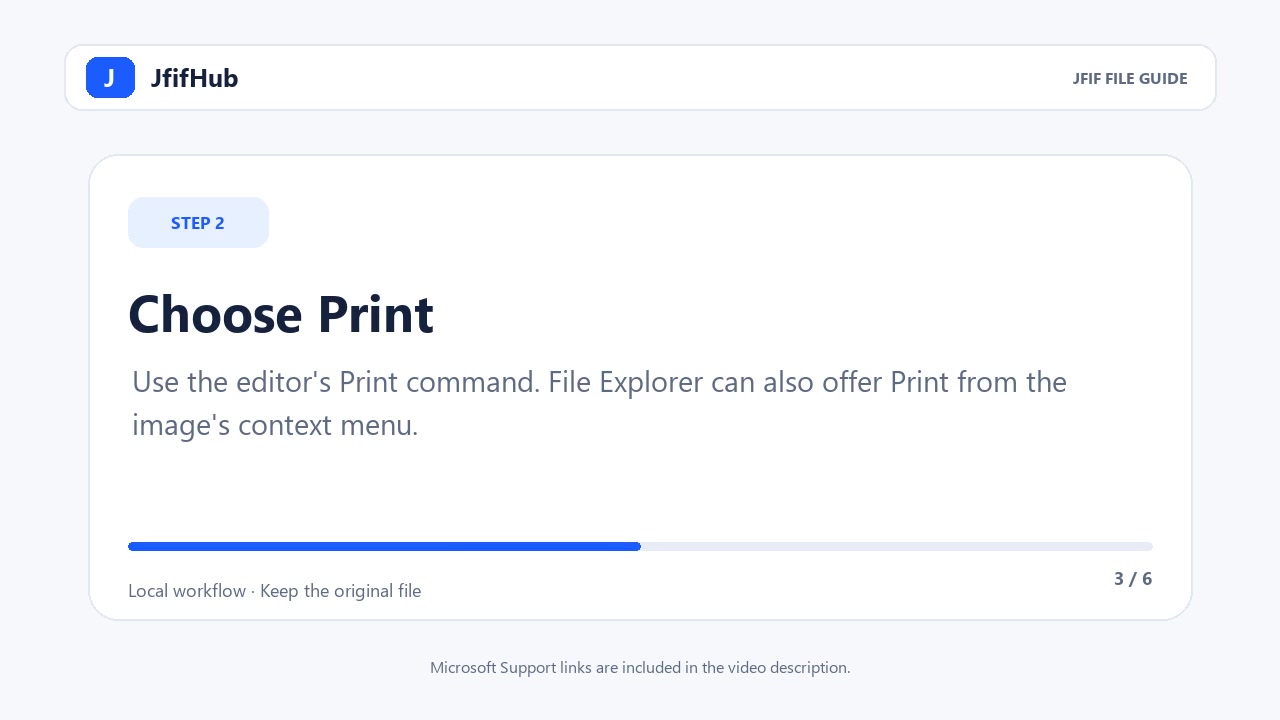
Use the print dialog, not a filename change
- Keep the original JFIF file. Open it in Paint or another image editor that can display it.
- Choose Print. If you start in File Explorer, Windows support documents right-clicking a picture and choosing Print.
- In the printer list, choose Microsoft Print to PDF if it is available. Choose paper size and orientation, then inspect the preview.
- Select Print and choose a destination and filename for the new PDF. Open the saved PDF to check that the whole image is visible.
This is a print workflow: the PDF contains a page representation of the picture. A file renamed from .jfif to .pdf does not become a PDF. If you need selectable text, run OCR separately; printing a picture alone does not recognize its text. See the separate JFIF-to-searchable-PDF OCR workflow.
If “Microsoft Print to PDF” is missing
Do not rename the image or upload it to an unfamiliar converter as a workaround. Check the printer list in another image editor or use a PDF tool you already trust. The Windows print options and available printers can differ by device configuration; this guide cannot confirm what is enabled on your computer.
When you only need a JPG
If the destination asks for a JPG rather than a document, use the JfifHub JFIF to JPG converter instead. For a filename-extension rejection, first see when renaming a JFIF may be enough and when a new JPG export is needed.
Questions
Does converting JFIF to PDF make the picture sharper?
No such improvement is promised by this print workflow. The PDF is a page output, and the print preview controls its placement on the page. Keep the source image for the original pixels.
Can I use this for several JFIF files?
This page describes a one-picture print workflow. For several images, place them in a document or use a trusted local PDF application that explicitly supports combining images; check its preview and output before relying on it.
Sources: Microsoft Support: print a picture from File Explorer or an image editor; Microsoft Support: Windows printing and Print to PDF troubleshooting.