Make a Searchable PDF from a JFIF Image on Windows
First create a PDF containing the JFIF picture, then run OCR on that PDF in Adobe Acrobat: open the PDF, choose All tools → Scan & OCR → In this file, select the page range and recognition language, then choose Recognize Text. Save a separate copy and test a word from the image with Find. The print-to-PDF step alone creates an image page; OCR is the separate step that adds searchable text.
Need the first step? Use the Windows JFIF-to-PDF print guide to make the image-only PDF, then return here for the OCR stage.
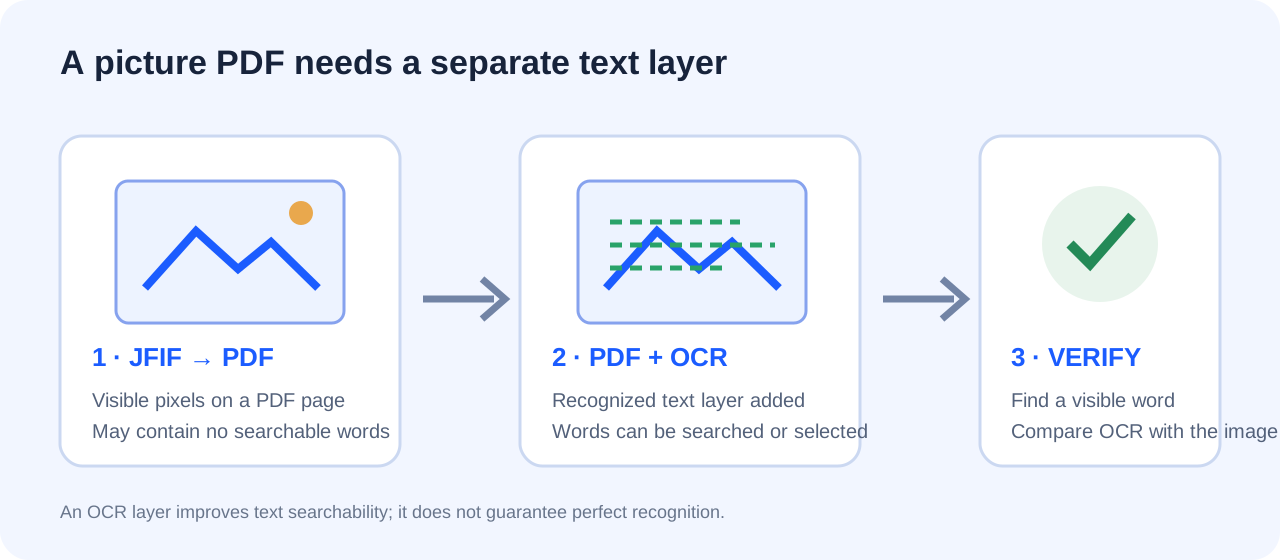
Follow the four-step OCR check
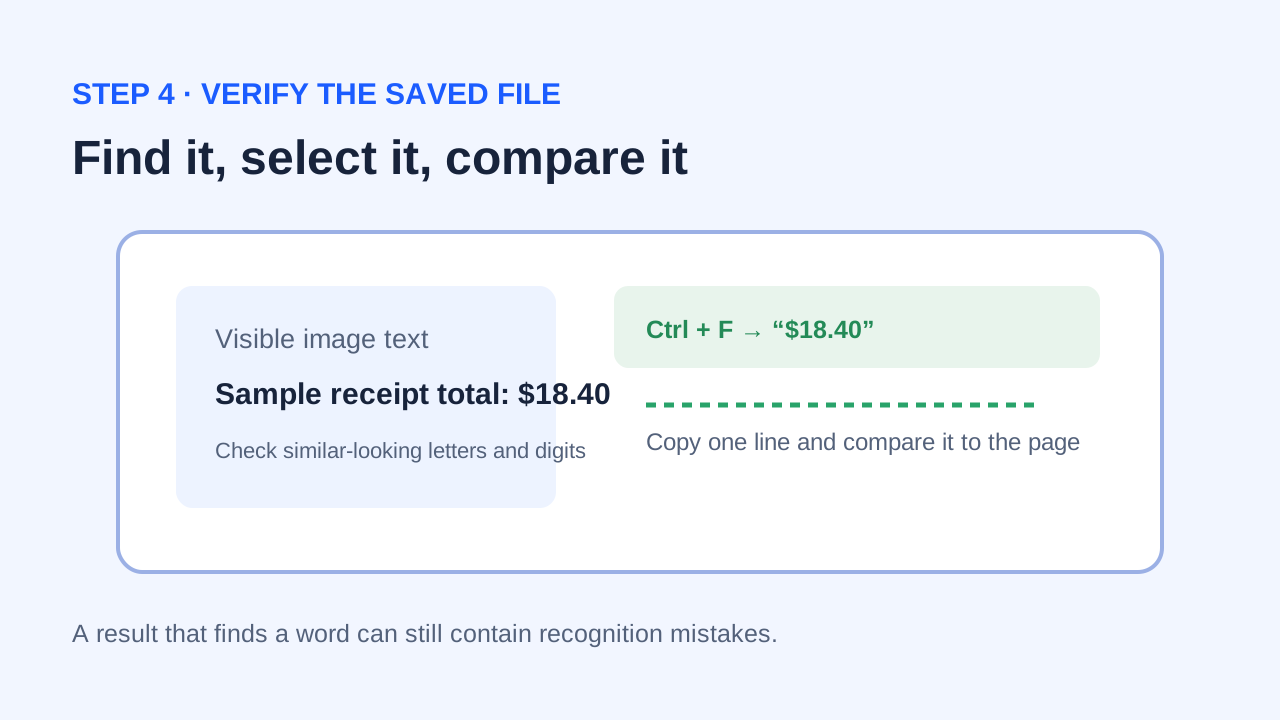
These four original diagrams summarize the order of operations. They explain the workflow documented by Adobe; they are not screenshots of a tested Acrobat installation.
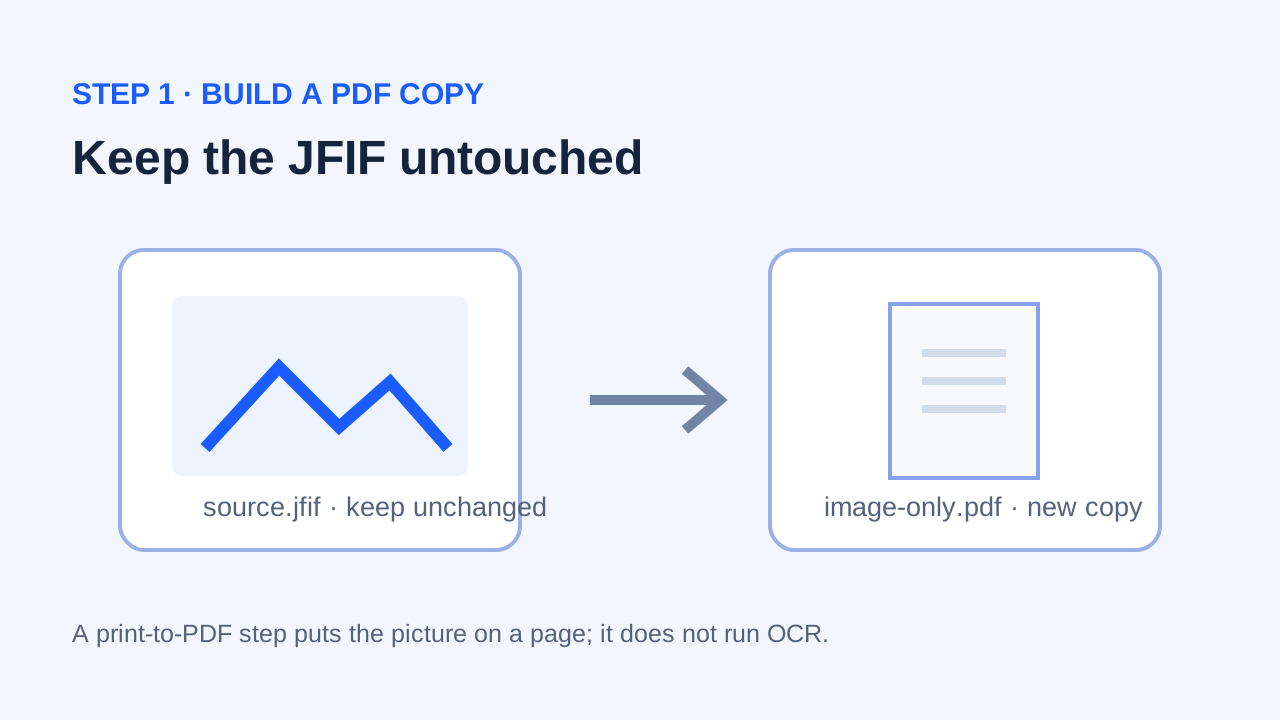
1. Create an image-only PDF and preserve the original
If all you have is a JFIF picture, make a PDF from that image using a Windows print workflow or a PDF application you already trust. The existing JFIF-to-PDF guide covers the print route. Save the PDF under a new name and keep the original JFIF unchanged, so you can compare the image if recognition changes or misses text.
A PDF that looks like a page can still contain only pixels. In an image-only PDF, letters are part of the picture, so a viewer cannot find them as document text. Changing the suffix, printing again, or increasing the page zoom does not itself perform character recognition.
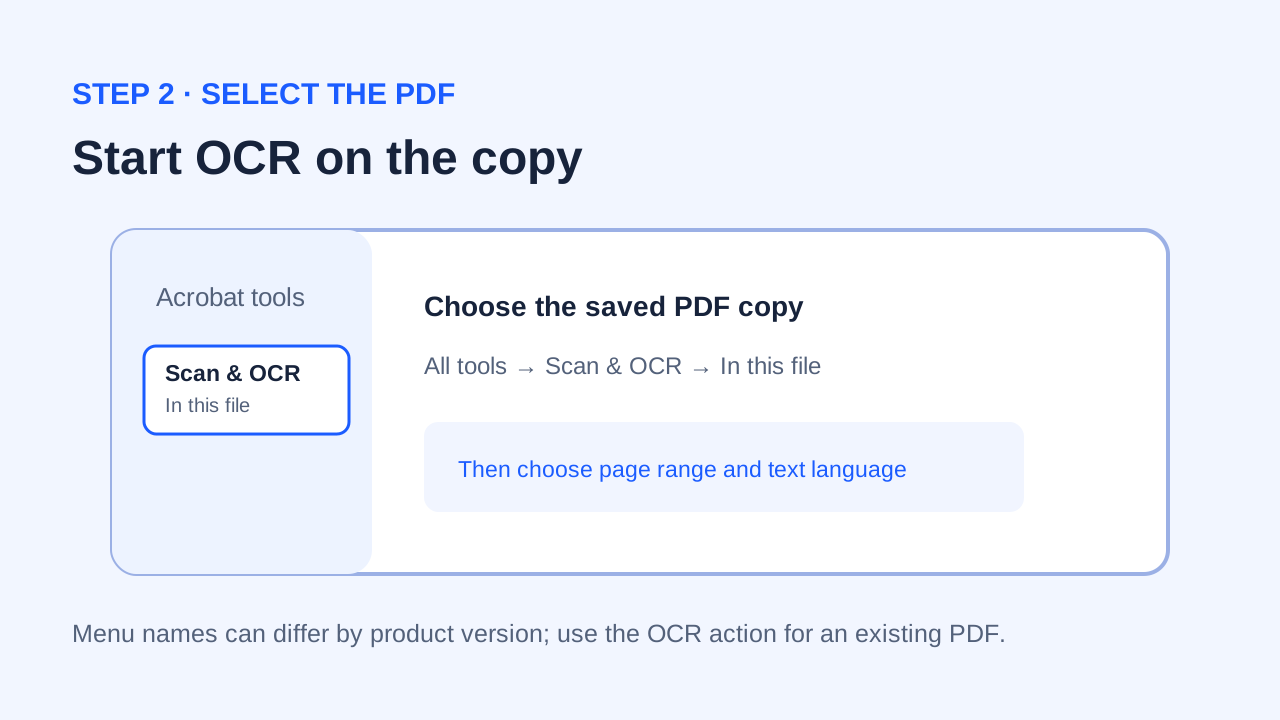
2. Run Acrobat OCR on the PDF copy
- Open the saved PDF in Adobe Acrobat. Keep an untouched copy before editing.
- Choose All tools → Scan & OCR, then select In this file.
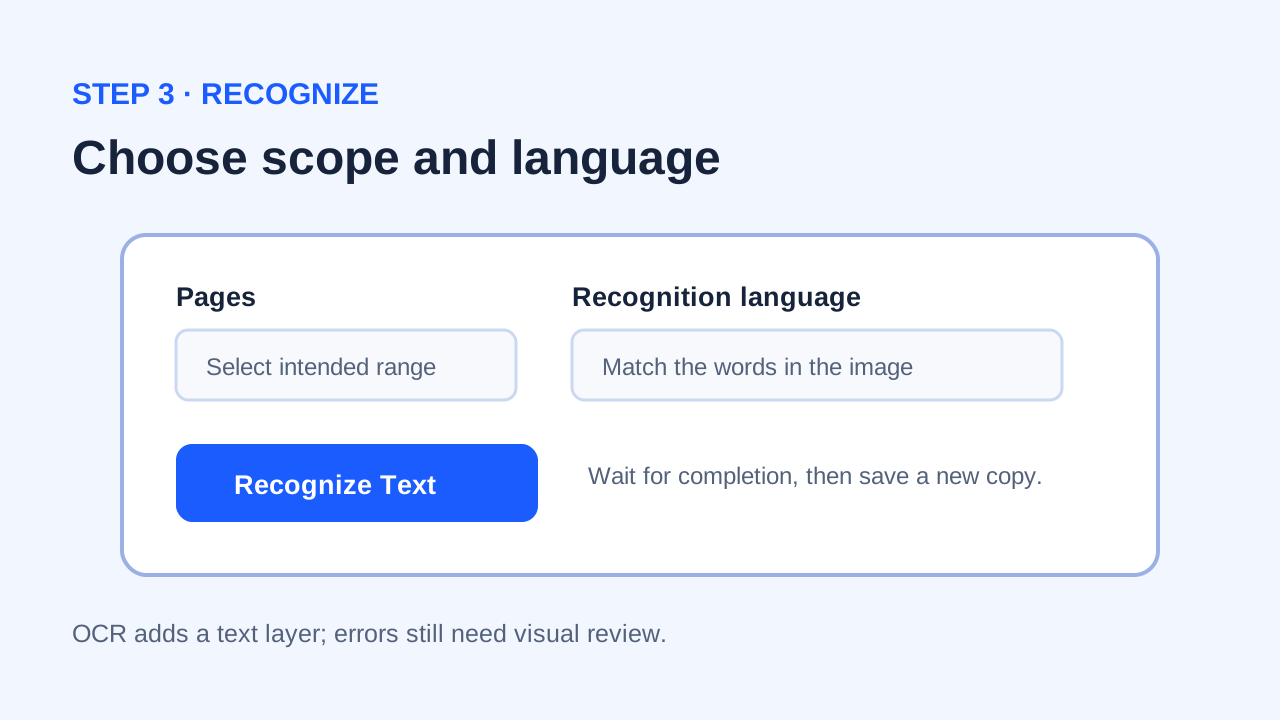
- Choose the page range and the language actually shown in the image. Start with the language the document uses; mixed-language pages may need closer review.
- Select Recognize Text, wait for the operation to finish, and save the result as a new file.
Adobe documents this operation as creating a searchable text layer in the PDF. Tool names and access can depend on the Acrobat product and account available to you. If Scan & OCR is absent or asks for a plan you do not have, stop there; this guide does not assume a free tier or quote a price.
3. Verify the PDF, not just the OCR message
- Use Find to search for one clearly printed word or phrase visible on the page.
- Try selecting and copying a short line. Compare every character with the visible image, especially zeros versus letter O, punctuation, small print and names.
- Check that the image remains legible and the page count and order still match your source.
- Keep both the original JFIF and the first PDF until the recognized copy has passed those checks.
A successful OCR operation is not proof that every word is correct. Adobe advises reviewing the recognized text and correcting mistakes. Poor focus, small text, skew, compression artifacts, handwriting or choosing the wrong language can make a text layer incomplete or inaccurate. If the text is important, compare it line by line before relying on search or copy.
If OCR is not available
Microsoft OneNote can copy recognized text from a picture or a printout into a note. That can help recover text, but copying words into a note is not the same as adding a searchable text layer to the original PDF. If the PDF itself must be searchable, use a PDF application that explicitly offers OCR for an existing file, and verify the saved result.
For private documents, avoid sending the picture to an unfamiliar online OCR site. The JfifHub conversion page processes its image conversion in your browser, but that says nothing about where another product performs OCR or stores documents. Check the OCR provider's own terms before submitting files.
Questions
Does the JfifHub print-to-PDF page make text searchable?
No. It creates a PDF page representation of the picture. OCR is a separate operation; this page describes how Adobe documents that step.
Do I need to convert JFIF to JPG before making the PDF searchable?
Not for the workflow described here. Create a PDF from the image first, then run OCR on the PDF. If a receiving application requires a JPG, use the JFIF-to-JPG converter instead.
Why can I see words but Find returns nothing?
The PDF may contain only a picture. Apply OCR to a copy, save it, and search again. If Find still returns nothing, check that the OCR finished, the selected page range includes the page, and the language matches the image.
Primary references: Adobe: recognize text in scanned documents; Adobe: review and fix OCR text; Microsoft: copy text from pictures with OneNote OCR. Procedure is based on those product documents; no specific Acrobat build was tested for this article.