Does Converting JFIF to JPG Keep EXIF Metadata?
In a test of one 4048 × 3036 phone-camera .jfif with readable camera, capture-time, and GPS EXIF, the downloaded JPGs from JfifHub and Framebird contained no readable EXIF fields. Framebird’s “Remove metadata” on/off outputs had the same 2,993,325-byte size and identical SHA-256 in this run. This is one input and one browser session, not a universal result. Keep the original and inspect each output when metadata matters.
What this browser converter does
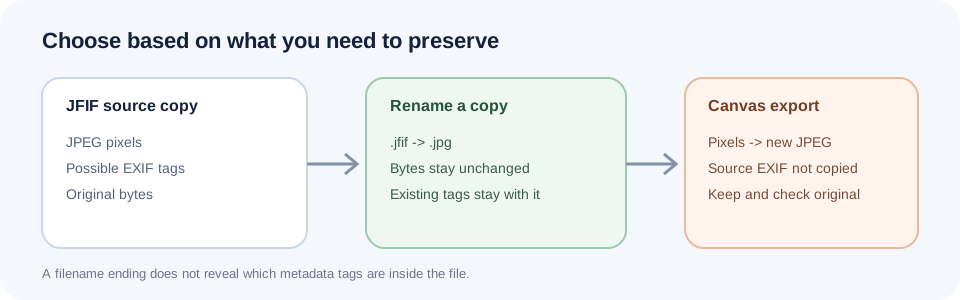
The word “convert” can hide two different actions. JfifHub's converter decodes the selected image, draws it onto a canvas, and asks the browser to create an image/jpeg blob. That output is a newly encoded file; the code does not read EXIF tags from the input or copy them into the output.
The HTML Standard describes canvas file serialization as creating an image from the canvas bitmap's pixel data. The browser's toBlob() method is an encoder for that canvas image, not a metadata-copy operation. This is why you should expect the original camera EXIF block not to carry through this tool. It is a conclusion from the visible conversion pipeline and the browser standard, not a promise about every converter or every browser encoder.
A browser may write format information of its own. For example, the standard specifies 96 dpi for output formats that support resolution metadata. That does not mean the original camera date, GPS coordinates, or camera model has been preserved.
A synthetic .jfif input accepted by the live converter
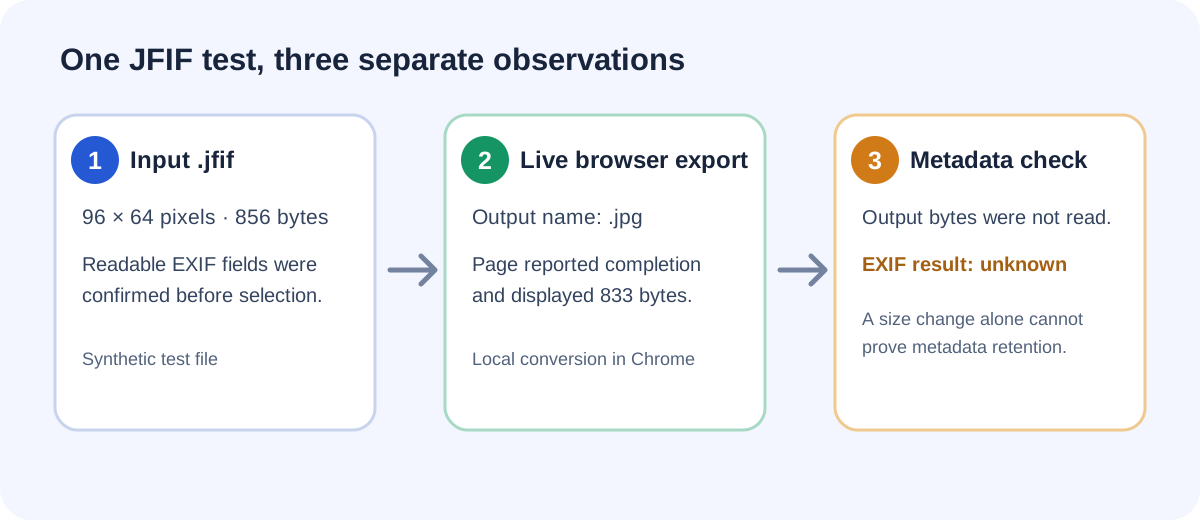
On October 22, 2026, I created a 96 × 64 synthetic JPEG file with a JFIF header and three readable EXIF fields (Make, Model, and DateTime). I verified those fields in the source file, then selected the .jfif file through the live homepage's visible file chooser. The converter completed and displayed exif-sample.jpg at 833 bytes; the source file was 856 bytes.
Limit of this check: the downloaded output bytes were not available for metadata parsing in this run. Therefore, this sample confirms that the live converter accepted this .jfif input and produced a .jpg result, but it does not independently confirm whether this particular output retained EXIF. The code path and the two downloaded-photo tests above are separate evidence; do not treat this incomplete sample as another measured EXIF-loss case.
Two real-photograph checks in the live converter
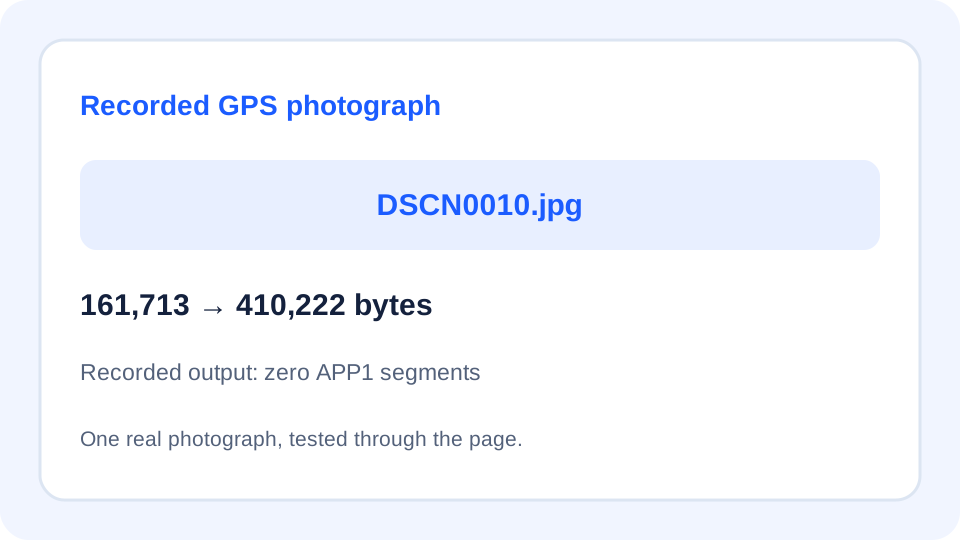
On October 7, 2026, each untouched public photograph was selected through the live homepage's “choose a file” button, converted, and downloaded through its Download button. The conversion function was not called directly. Output was set to JPG and quality to the default Highest · 100%. File sizes and APP1 segments were checked in the actual downloaded files.
GPS photograph
Input: DSCN0010.jpg, 161713 bytes. Parsed EXIF tags — IFD0: GPSInfo, ResolutionUnit, ExifOffset, ImageDescription, Make, Model, Software, Orientation, DateTime, YCbCrPositioning, XResolution, YResolution; Exif: ExifVersion, ComponentsConfiguration, FlashPixVersion, DateTimeOriginal, DateTimeDigitized, ExposureBiasValue, MaxApertureValue, MeteringMode, LightSource, Flash, FocalLength, UserComment, ColorSpace, ExifImageWidth, ExifInteroperabilityOffset, SceneCaptureType, ExifImageHeight, Contrast, Saturation, Sharpness, SubjectDistanceRange, FileSource, ExposureTime, FNumber, SceneType, ExposureProgram, CustomRendered, ISOSpeedRatings, ExposureMode, WhiteBalance, DigitalZoomRatio, FocalLengthIn35mmFilm, GainControl, MakerNote; GPS: GPSLatitudeRef, GPSLatitude, GPSLongitudeRef, GPSLongitude, GPSAltitudeRef, GPSTimeStamp, GPSSatellites, GPSImgDirectionRef, GPSMapDatum, GPSDateStamp. The GPS fields include latitude, longitude, time, and date.
Output: DSCN0010.jpg, 410222 bytes. APP1 segments: 0. Parsed EXIF tags: none. Output dimensions: 640 × 480 pixels.
Page status: Done. Your files stayed in this browser. Source file: DSCN0010.jpg.
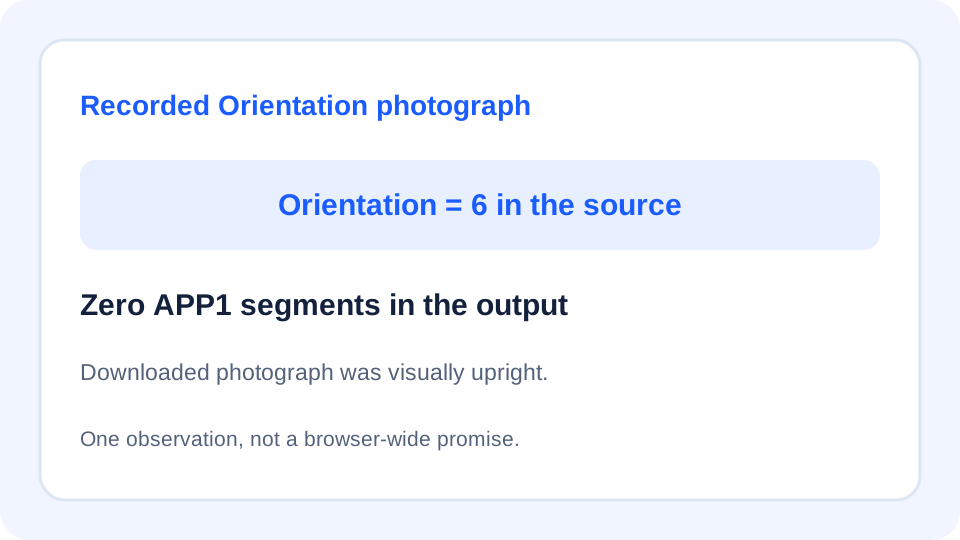
Orientation photograph
Input: 1be43997-6362-429e-b529-4ed230dca213_original.jpeg, 1786289 bytes. Parsed EXIF tags — IFD0: ExifOffset, Orientation; Exif: ColorSpace, ExifImageWidth, ExifImageHeight. Orientation was 6; the stored image dimensions were 4032 × 3024 pixels.
Output: 1be43997-6362-429e-b529-4ed230dca213_original.jpeg, 4518773 bytes. APP1 segments: 0. Parsed EXIF tags: none. Output dimensions: 3024 × 4032 pixels. In the visual comparison, the downloaded photograph was upright and matched the correctly displayed source photograph.
Page status: Done. Your files stayed in this browser. Source file: 1be43997-6362-429e-b529-4ed230dca213_original.jpeg.
These source files used .jpg and .jpeg names; the converter accepted their image/jpeg type through the same conversion path. Each is a single observed case, not a result for all browsers or all converters. The Orientation case was observed visually; it is not a general orientation guarantee.
The measurements above record the filenames downloaded at test time. The filename handling was subsequently fixed so that new downloads follow the selected .jpg or .jpeg ending, regardless of the input filename.
Real phone-photo comparison: JfifHub and Framebird
On October 23, 2026, I used one phone-camera JPEG file named with the .jfif extension (4048 × 3036 pixels; 4,055,536 bytes). Pillow 12.3.0 read the source as JPEG with both a JFIF APP0 segment and an EXIF APP1 segment. Its readable EXIF included camera make/model, capture date/time, orientation, and GPS fields. The original image and its private location metadata are not published here.
| Measured item | Original .jfif | JfifHub JPG | Framebird JPG |
|---|---|---|---|
| Camera, capture time, GPS | Make, Model, DateTime and GPS fields readable | Run 1 and run 2: no EXIF tags; 7,962,817 bytes each | “Remove metadata” off and on: no EXIF tags; 2,993,325 bytes each |
| Output identity | 4048 × 3036; JFIF APP0 + EXIF APP1 | Both outputs had the same SHA-256; 4048 × 3036 | Off/on outputs had identical SHA-256; 4048 × 3036 |
| Scope of result | Pillow 12.3.0 read the actual downloaded files. This is one source image and these exact browser settings; it does not establish behavior for other photos, sessions, or converters. | ||
For this input, toggling Framebird’s metadata-removal option did not change the downloaded bytes: both files were 2,993,325 bytes and their SHA-256 hashes matched. That observed equality does not prove what the control does for other inputs. JfifHub’s converter screen had no corresponding metadata-removal control; its two default-setting runs produced byte-identical files without readable EXIF tags.
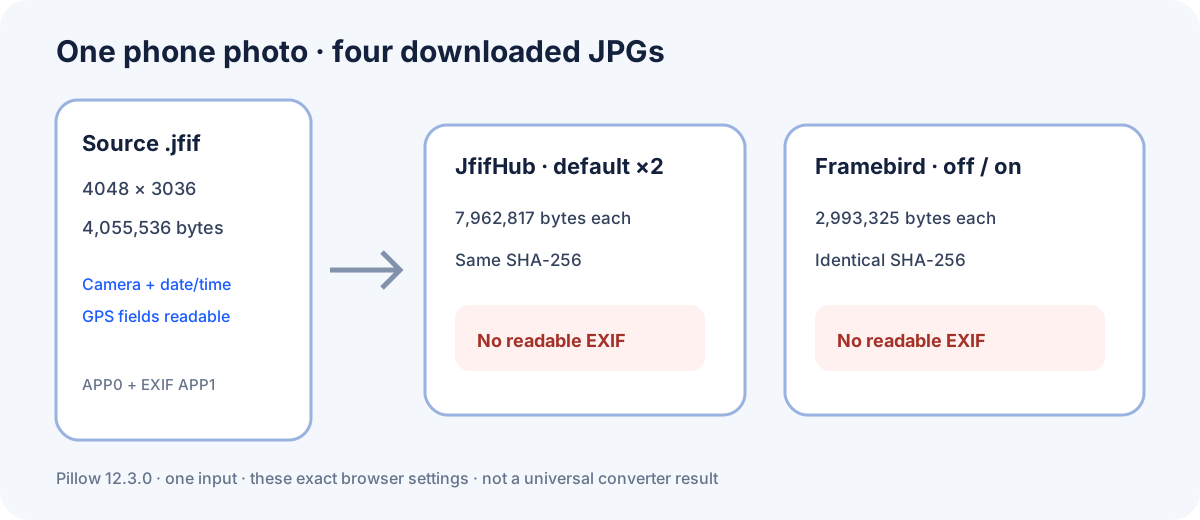
Reader takeaway: if GPS, date, or camera fields must survive, retain the original and check the exact downloaded output. A converter’s on-page control label alone does not establish which EXIF fields its current run preserves.
Choose the operation that matches your goal
- You only need a familiar filename: make a copy and rename its ending from
.jfifto.jpg. Renaming changes the directory entry, not the image bytes. It keeps whatever metadata was already in that file, but it does not rewrite or repair the image. - You need a newly encoded JPG: use a converter, but keep the original. With JfifHub, the output is encoded from pixels and is not designed to preserve source EXIF tags.
- You need selected metadata in a re-encoded file: use a metadata-aware image application that explicitly documents preservation or copying. Check its result; do not assume an “EXIF” label means every tag was retained.
JFIF and Exif describe different information structures associated with JPEG-encoded images. The Library of Congress distinguishes a JFIF APP0 marker from an Exif APP1 marker. The extension alone therefore cannot tell you whether a file contains GPS, capture time, or camera fields.
Check a copy before sharing or archiving
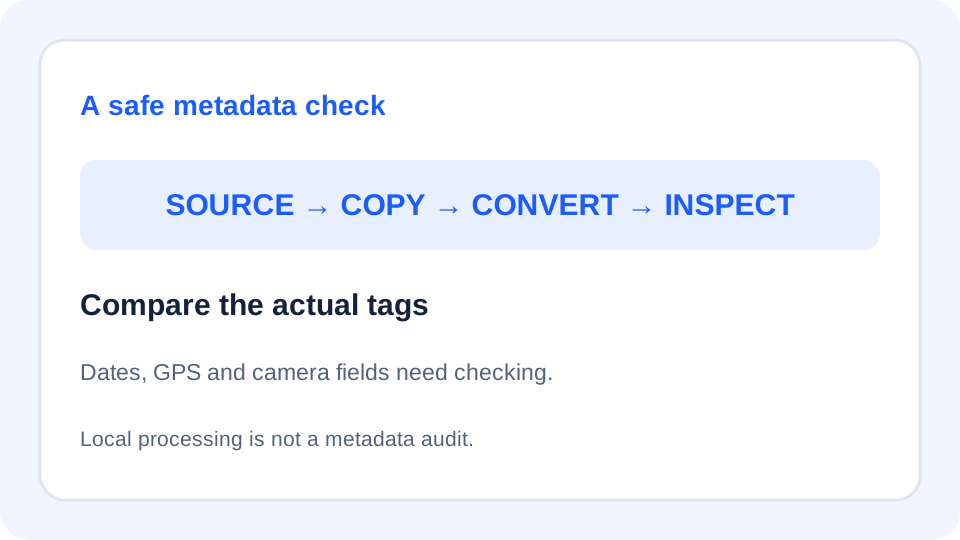
- Keep the untouched JFIF. If it matters, make a working copy before changing anything.
- Inspect the original with an image metadata viewer. Look specifically for fields you care about, such as camera make/model, original capture time, and GPS coordinates; a blank field cannot be preserved.
- Convert the copy, then inspect the downloaded JPG with the same viewer. Compare the tags, not only the thumbnail or file extension.
- If the tags are missing and you need them, stop and use a metadata-aware workflow. Do not try to rebuild camera or location facts from memory.
For privacy, removing location tags and keeping files off a server are separate questions. JfifHub processes the image locally in your browser, but local processing alone is not a metadata audit. Conversely, a re-encoded output should not be treated as a guaranteed metadata scrub: inspect the file you plan to send.
Quick answers
Does changing .jfif to .jpg preserve metadata?
A rename-only change leaves the file bytes as they were, including any metadata present. It does not create a new JPEG image.
Does every JFIF file contain EXIF data?
Not necessarily. A JFIF filename extension alone does not reveal which metadata tags are inside; inspect the actual file.
Does JfifHub keep my original EXIF tags?
No. Its current canvas-based export creates a new JPEG from pixels and does not copy the source EXIF block. Keep your source file if the metadata matters.
Does “processed in my browser” mean my output has no metadata?
No. Local processing describes where the conversion runs. Metadata retention or removal is a separate property that must be checked in the output.
Technical references: WHATWG HTML Standard: canvas image serialization; MDN: HTMLCanvasElement.toBlob(); Library of Congress: JPEG encoded file with Exif metadata; Library of Congress: JFIF family. A related public question about image metadata in canvas: Stack Overflow.
Open the JFIF to JPG browser converter