Convert JFIF to JPG on a Chromebook
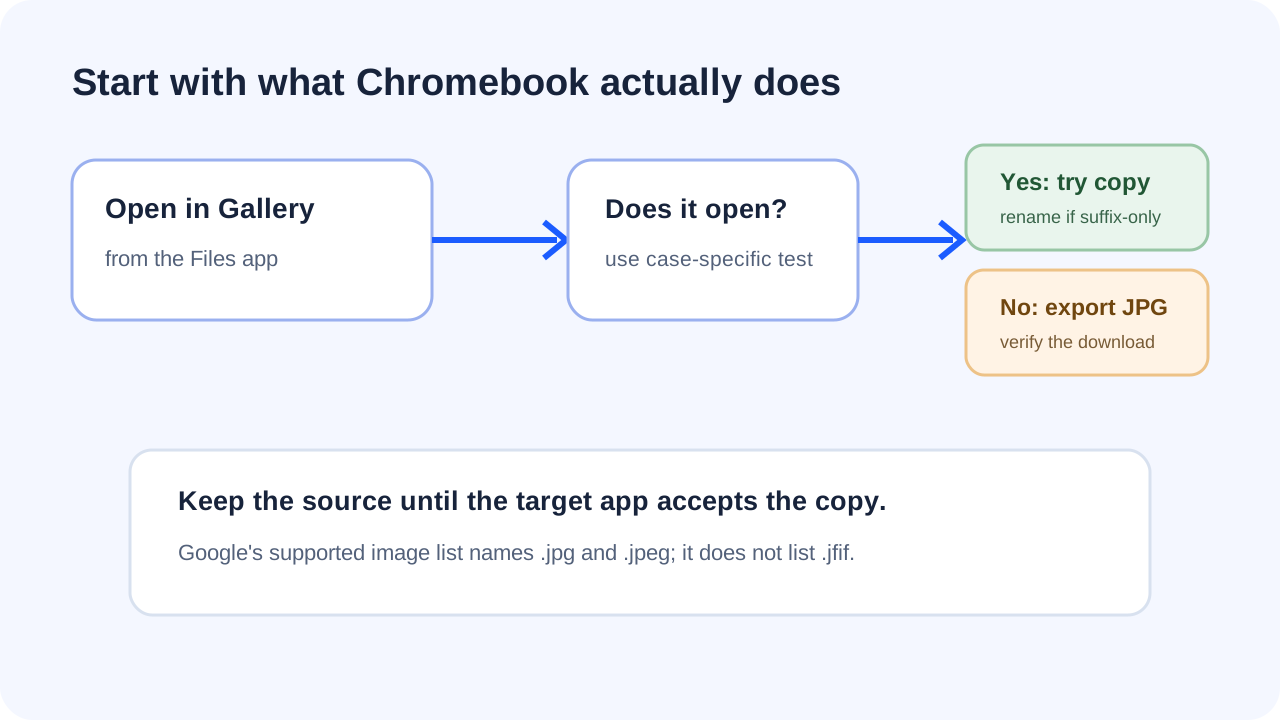
Google’s Chromebook file-type list names .jpg and .jpeg, but does not list .jfif. If Gallery opens your file, first make a separate copy and try renaming that copy to .jpg when an app only rejects the suffix. If ChromeOS reports an unknown file type or the destination still rejects it, open JfifHub’s browser converter, choose the JFIF file, export a JPG, and test that downloaded copy. Google’s list is not proof that every Chromebook refuses JFIF.
Open the JFIF to JPG converter
First check whether ChromeOS can open the file
Google’s current help page for Chromebook file types lists .jpg, .jpeg, .png, .webp, .gif, and .bmp as supported image extensions. It does not list .jfif. Google says an “Unknown file type” message means that file type is not working on the Chromebook at that time and suggests saving the file to Google Drive or another web application to open it in a browser. That guidance describes the documented support list; it does not establish what every ChromeOS release or third-party app will do with every JFIF file.
- Keep the downloaded
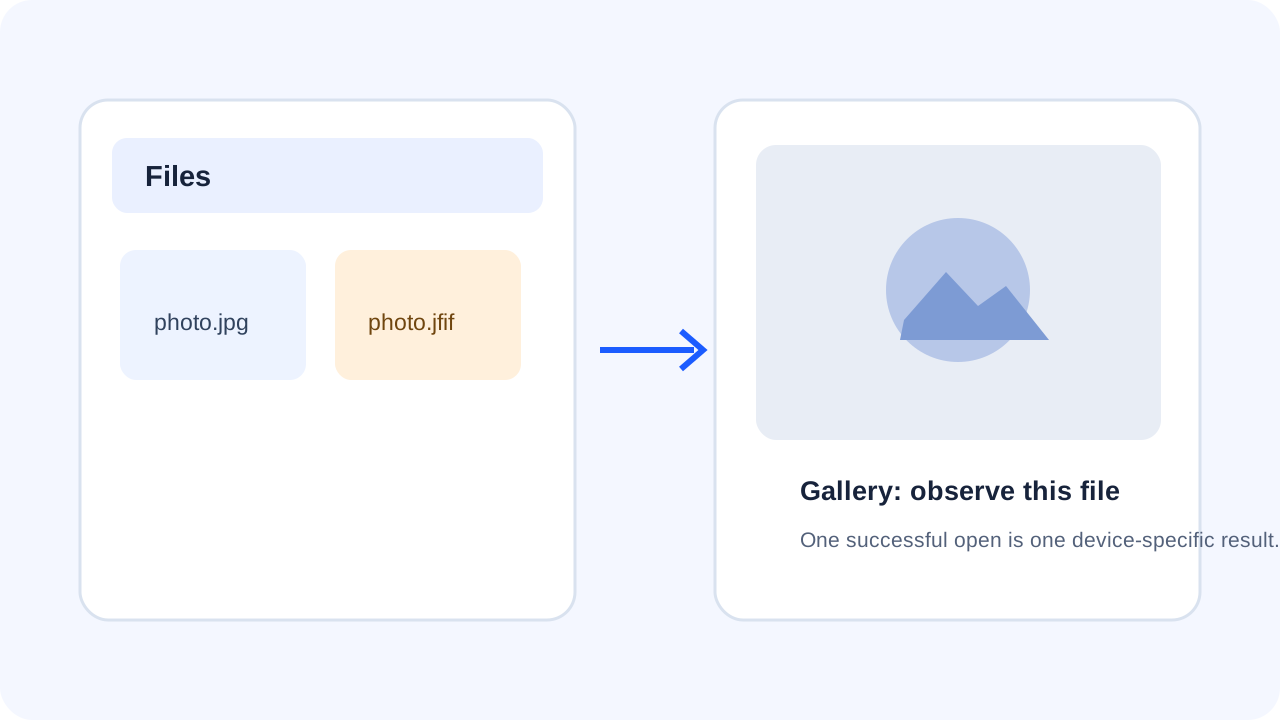
.jfiffile unchanged in Downloads or another local folder. - Double-click it in Files. If Gallery opens the image, note that this device can display this particular file; do not infer support for all JFIF variants.
- If ChromeOS reports an unknown type, keep the original and move to the browser-conversion route below. Do not delete the source.
Choose rename or browser export based on the failure
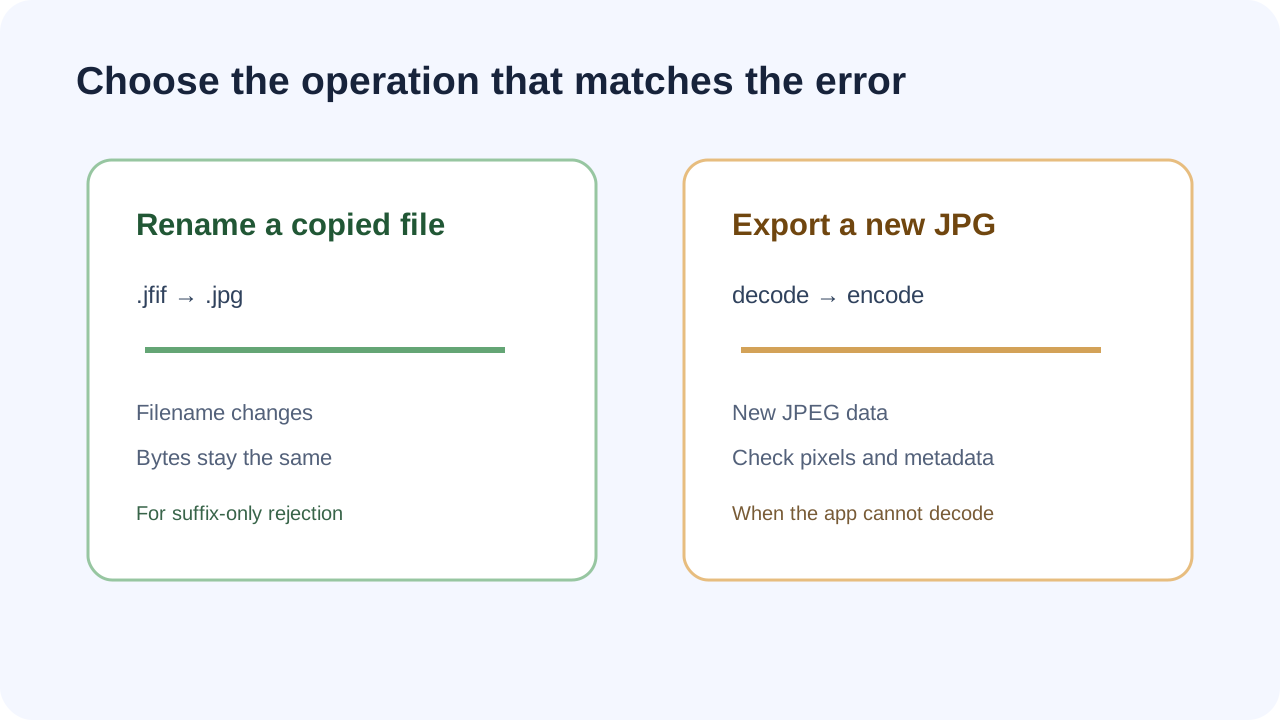
A filename change and an image conversion solve different problems. Renaming a copy from .jfif to .jpg changes the label, not the encoded image bytes. It can help only when the receiving app filters by extension and can already read the image data. A browser export decodes the picture and writes a new JPEG file; the new file can differ in bytes and may not retain all metadata.
| What you see | Try this | What it establishes |
|---|---|---|
Gallery opens the image; one website rejects .jfif | Duplicate the file, rename the copy to .jpg, and try the copy. | Whether that destination accepts the renamed copy. It does not test every app. |
| ChromeOS says “Unknown file type” | Keep the original; use a browser converter or another application that can decode it. | Whether a new JPG export opens in the intended destination. |
| The renamed file still fails | Export a fresh JPG from a converter, then open and test that output. | Whether re-encoding solves this file’s problem; it does not prove the source was healthy. |
Use the browser converter and verify its download
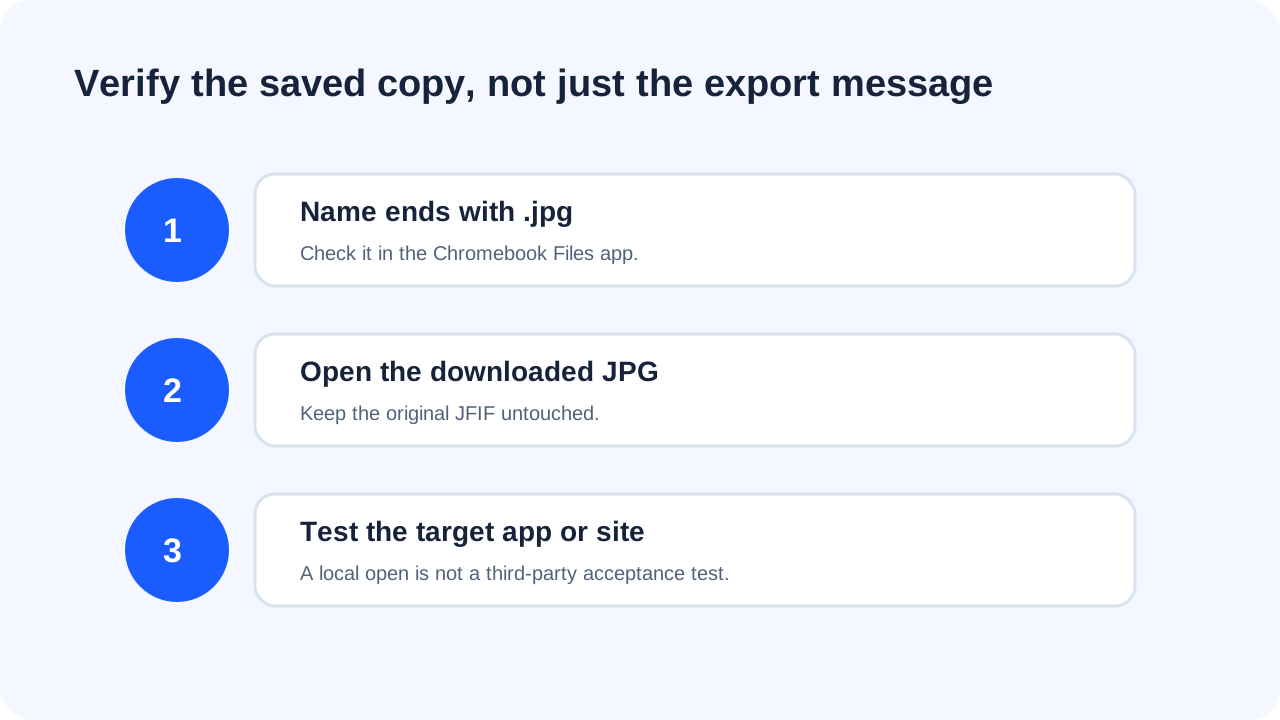
- Open the JfifHub JFIF-to-JPG converter in Chrome and choose the local JFIF file.
- Choose
.jpgoutput and select a quality setting. The tool processes the image in the browser; it does not send the image to JfifHub’s server. - Download the new file. In Files, confirm that its name ends in
.jpg, then open it in Gallery. - If the destination still rejects it, preserve the exact error and compare its stated requirements. A successful local open is not proof that a separate website will accept the file.
This page is based on Google’s published ChromeOS instructions and the converter’s documented browser workflow. A Chromebook device was not available for an end-to-end JFIF test in this run, so the steps above are a troubleshooting path, not a claim that a particular ChromeOS version was tested.
Quick answers
Does Chromebook officially list JFIF as a supported image type?
Google’s current compatible-file list names JPG and JPEG, but not JFIF. The omission does not prove that every Chromebook or app refuses JFIF.
Can I just rename JFIF to JPG?
Try a copy if the image opens and the only problem is a filename filter. Renaming does not change or repair the image data.
What if Gallery says “Unknown file type”?
Keep the original and use a browser or another application that can open the file. Google’s Chromebook help suggests a web application for unsupported types.
Does the browser converter upload my photo?
JfifHub’s conversion runs locally in the browser. The page’s privacy description says image files are not uploaded to the service.
Sources: Google Chromebook Help: file types that work on Chromebooks; Google Chromebook Help: open and edit photos in Gallery; Library of Congress: JPEG File Interchange Format family; IANA: registered media types.