Can a JFIF Image Have a Transparent Background?
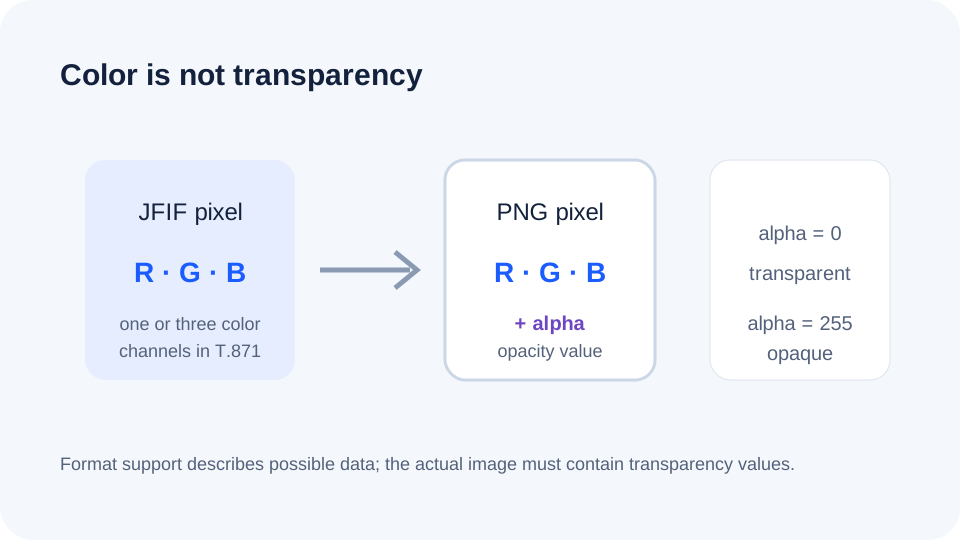
A standard JFIF image has one or three color channels, not the ordinary per-pixel alpha channel used to mark transparent areas in PNG. Converting it to PNG changes the file format; it does not remove a white or colored background. To get transparency, edit or mask the background first, then export the result as PNG.
Convert a JFIF to PNG Read the JFIF format guide
The format change in four pictures
Why the extension alone cannot make a background transparent
The ITU-T JFIF interchange specification describes images with one or three color channels, each eight bits per channel. The W3C PNG specification defines alpha as a separate transparency value and supports images with alpha. These are format-level capabilities: they explain what the formats can represent, not what a particular editor or converter does with every file.
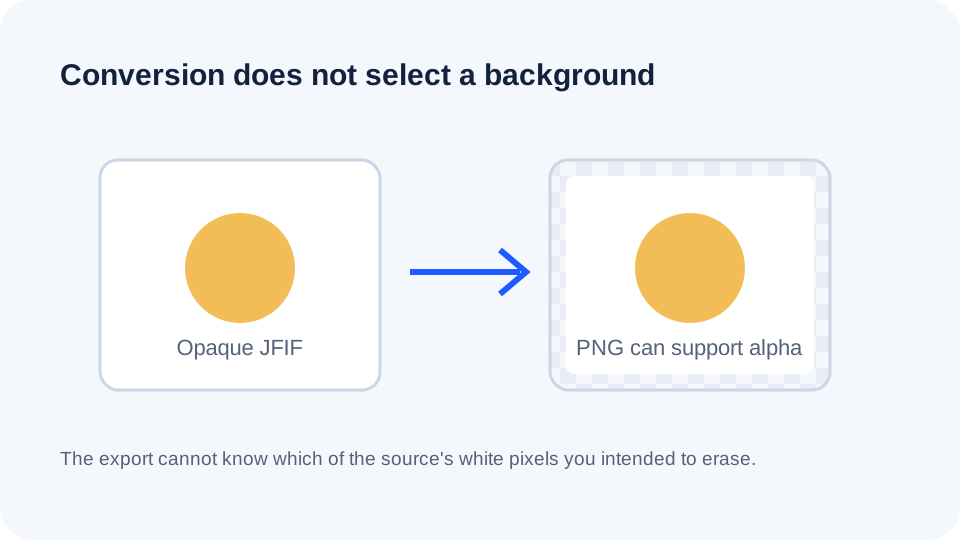
If a photograph shows a white wall behind an object, those wall pixels are ordinary image color. Renaming .jfif to .png leaves the encoded bytes unchanged; exporting through a converter decodes and writes a new image but has no information telling it which white pixels are background. Even a white-looking backdrop may contain shadows, highlights, or near-white subject details, so automatically making every white pixel transparent can damage the subject.
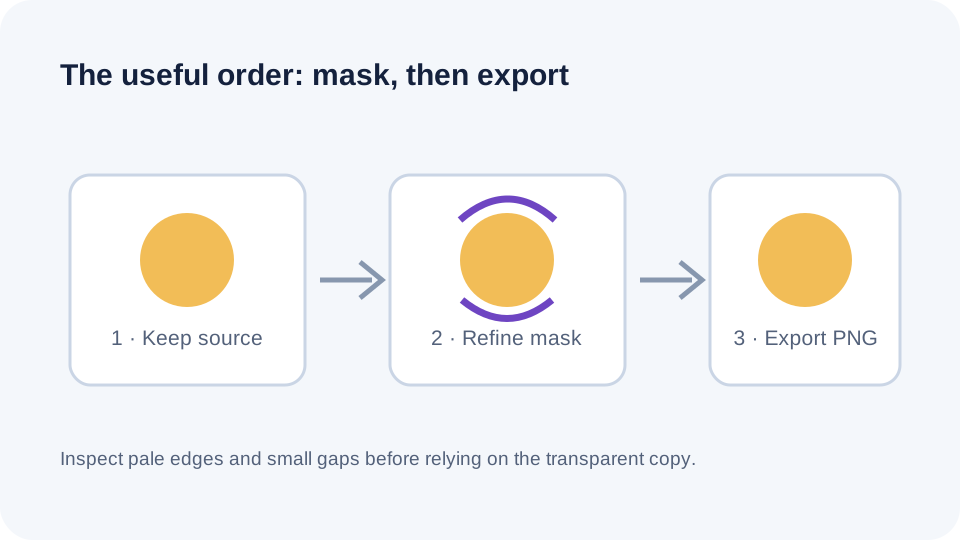
The practical distinction is between format conversion and background removal. Conversion chooses an output encoding. Removal creates or edits a mask that marks selected pixels as transparent. If your source is already a cutout stored in a format with transparency, keep that original and verify its alpha before converting; an ordinary JFIF export cannot carry the usual PNG alpha channel.
A safe workflow for a transparent result
- Keep an untouched copy of the JFIF source.
- Open it in an image editor with a background-removal or masking step. Inspect edges and small holes in the mask at high zoom; do not assume a one-click white-color selection preserves pale details.
- Confirm the editor shows transparency, commonly with a checkerboard, before exporting.
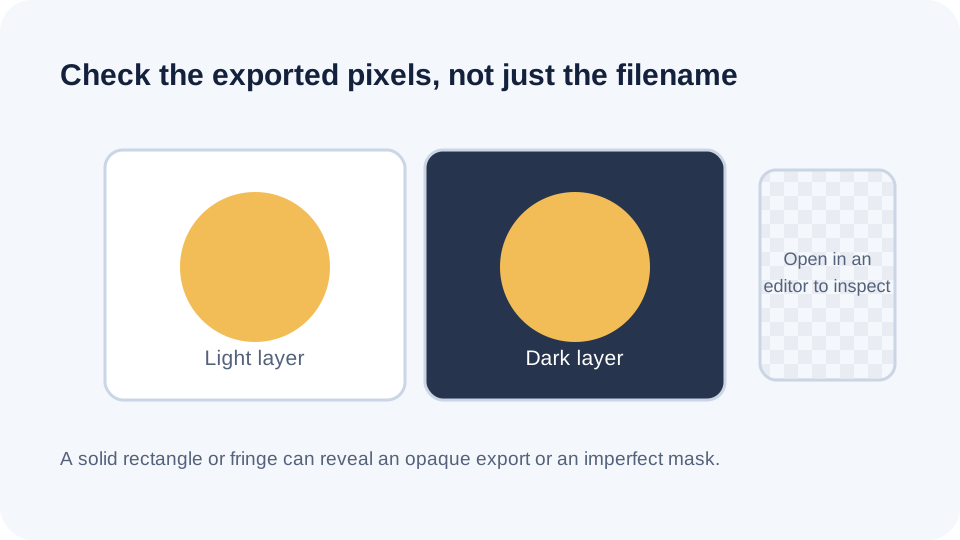
- Export as PNG, then reopen the downloaded file. Place it over both a light and a dark background; a solid white rectangle means the background is still opaque.
- Use the JfifHub PNG converter only when you need a format conversion. It does not perform background selection or masking.
For a logo or icon, save the edited master as PNG and test the actual downloaded file in its destination. Keep the source and editable project until the destination displays the transparent edges correctly.
What this page's converter can and cannot tell you
The linked JfifHub converter decodes the selected image and exports PNG locally in the browser. It does not upload the file, choose a background, or create a transparency mask. On the opaque EXIF test sample recorded for that converter, the PNG export had no eXIf chunk; that test says nothing about alpha in every input, browser, or conversion tool.
To check a particular result, use an image viewer or editor that can show the alpha channel, or place the PNG over a colored layer. A checkerboard in the editor is evidence of transparency; a white-looking image on a white canvas is not enough to tell whether its pixels are transparent.
Questions about JFIF transparency
Will converting JFIF to PNG remove a white background?
No. A normal conversion preserves the decoded picture, including its white background. Background removal is a separate editing operation.
Can PNG contain a transparent background?
Yes. PNG supports alpha transparency. The image still needs transparent pixel values or an alpha mask; the PNG extension alone does not create them.
Can I make only one color transparent?
An editor can select a color range and create a mask, but edges and similarly colored subject details may also be selected. Inspect and refine the mask before exporting.
Technical references: ITU-T T.871, JPEG File Interchange Format (scope: one or three color channels, eight bits per channel); W3C PNG Specification (PNG alpha representation). These references describe format capabilities, not a universal guarantee for every image editor.