JFIF to PNG
Convert a JFIF image to a downloadable PNG. Your image stays on your device.
Ready. No account needed.
What this conversion does
The browser decodes the image, draws it at its natural dimensions, and exports that canvas as PNG. PNG compression is lossless, but exporting a JPEG-derived image cannot recover detail discarded before this conversion. The browser's decoded pixels are the starting point, not the original camera data.
PNG can carry transparency. That does not mean converting a JFIF photo removes its background: this tool does not select, erase, or make any part of your image transparent. A white background remains white.
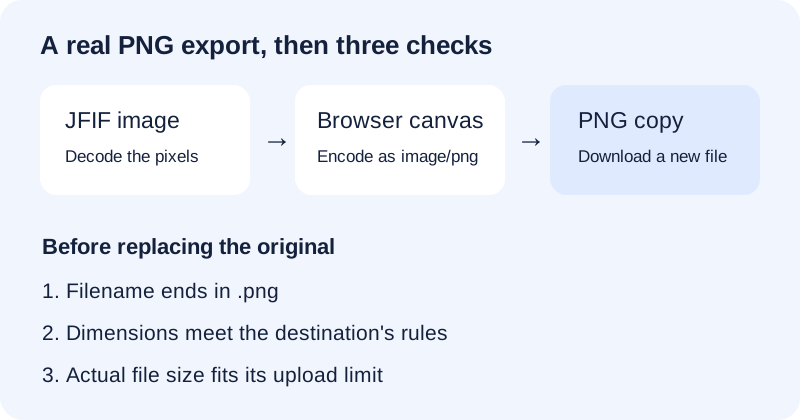
Four checks after a JFIF-to-PNG export
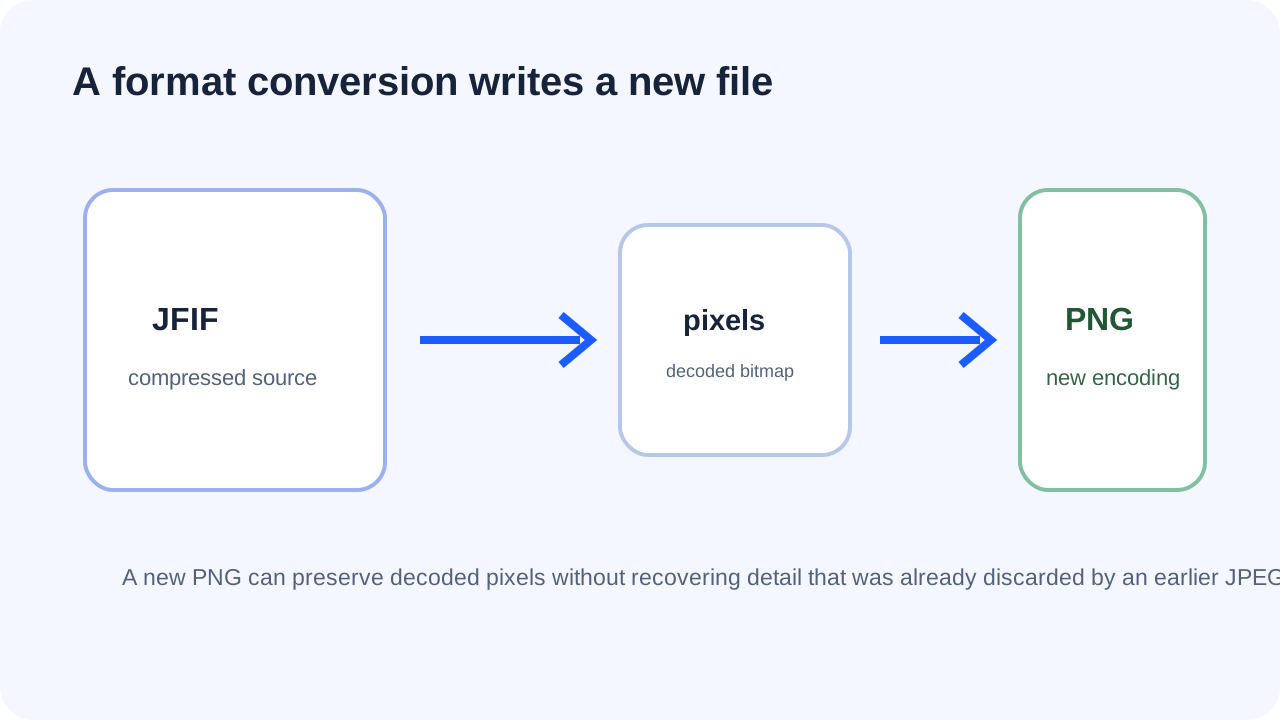
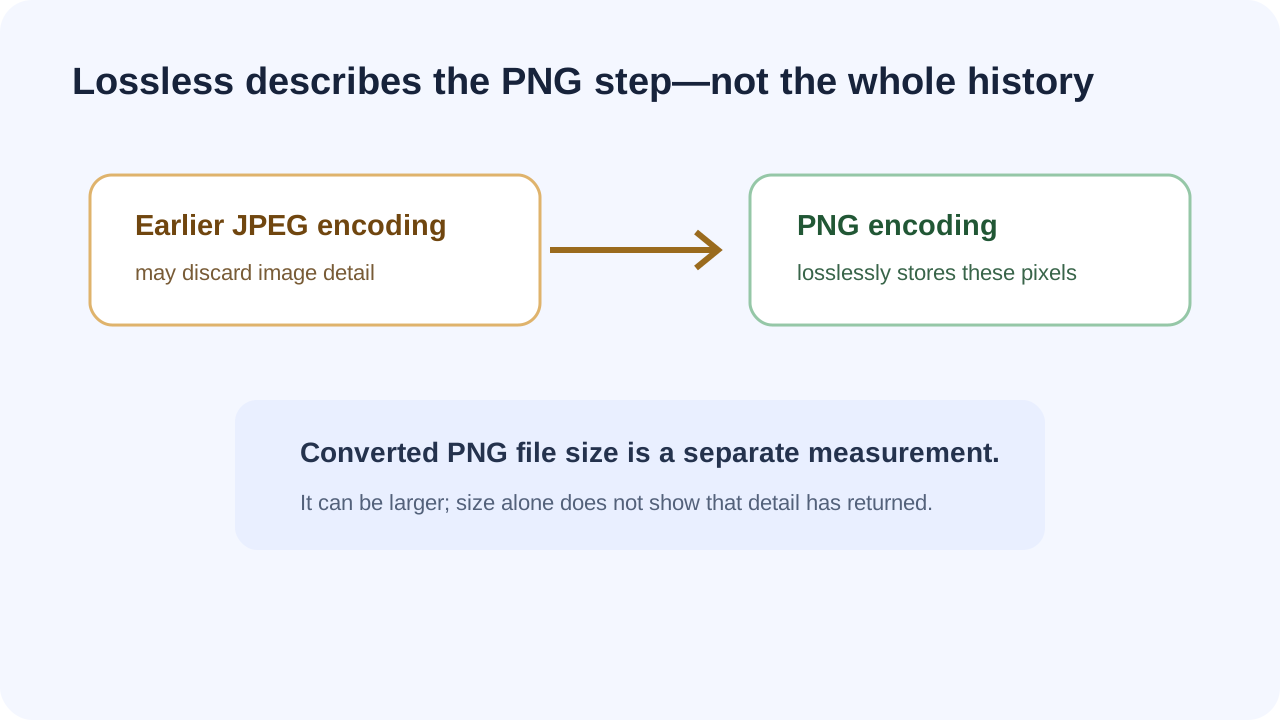
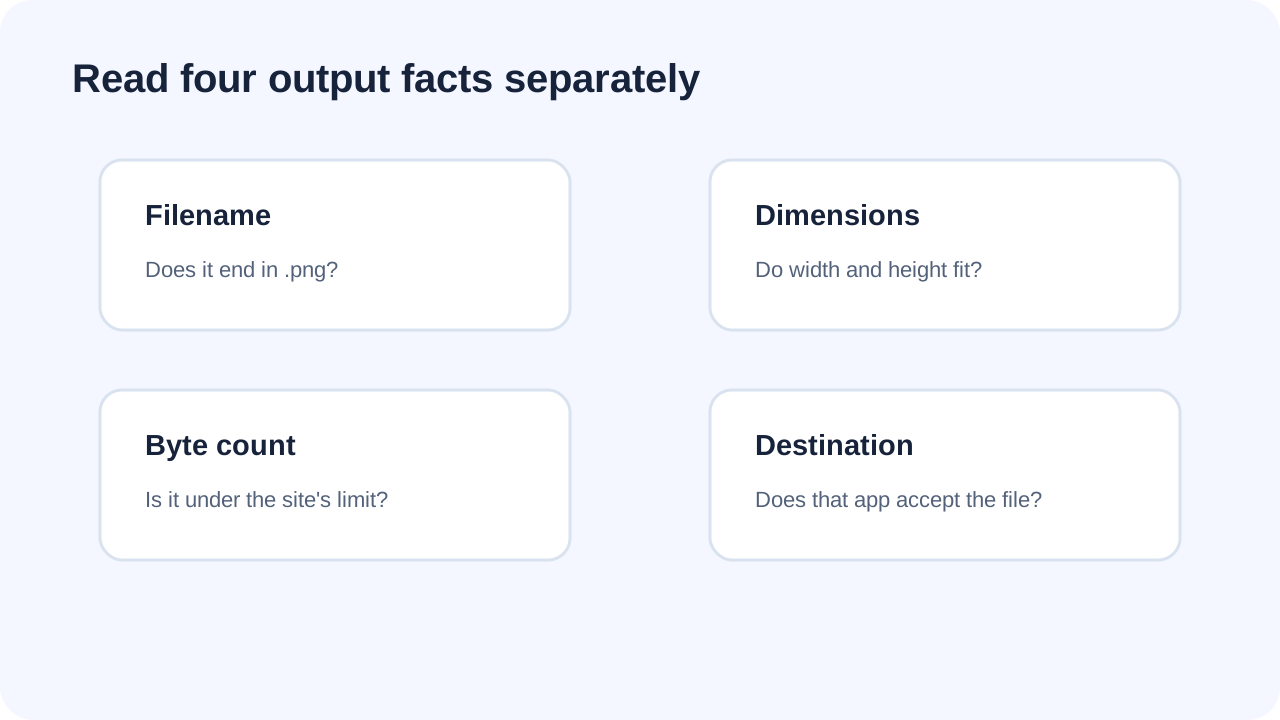
Check the result before replacing your source
Filename
Download the result link, rather than saving the source preview. The result is named after your input with a .png ending. A clipboard image uses clipboard.png. Keep the original until the destination accepts the new file.
Dimensions
The result card shows the width and height of the decoded image. This page does not resize or crop it. Compare those dimensions with your destination's requirements before assuming a format change is enough.
File size
The card reports the encoded PNG's actual byte count. A larger output is not evidence of recovered detail. If an upload has a size cap, compare that cap with the downloaded file; choosing PNG alone is not a size-reduction method.
Use PNG when the destination needs PNG
Start with the receiving application's requirement. If it explicitly asks for PNG, export PNG and test that copy. If it asks for JPG or JPEG, use the JFIF to JPG tool instead. Changing format because a file picker hides JFIF is a different decision from changing format because an editor needs a PNG input.
If the receiving page still rejects the output, separate three checks: can an image viewer open the downloaded PNG, does its filename end in .png, and do its dimensions and size fit the receiving page's rules? Those checks help distinguish a damaged file from an upload restriction. Repeatedly converting the same image does not address a size or dimension rule.
For a logo that needs an invisible background, you need a background-editing step before PNG export. See why converting JFIF to PNG does not create a transparent background. For archival metadata, retain the source and check the downloaded copy.
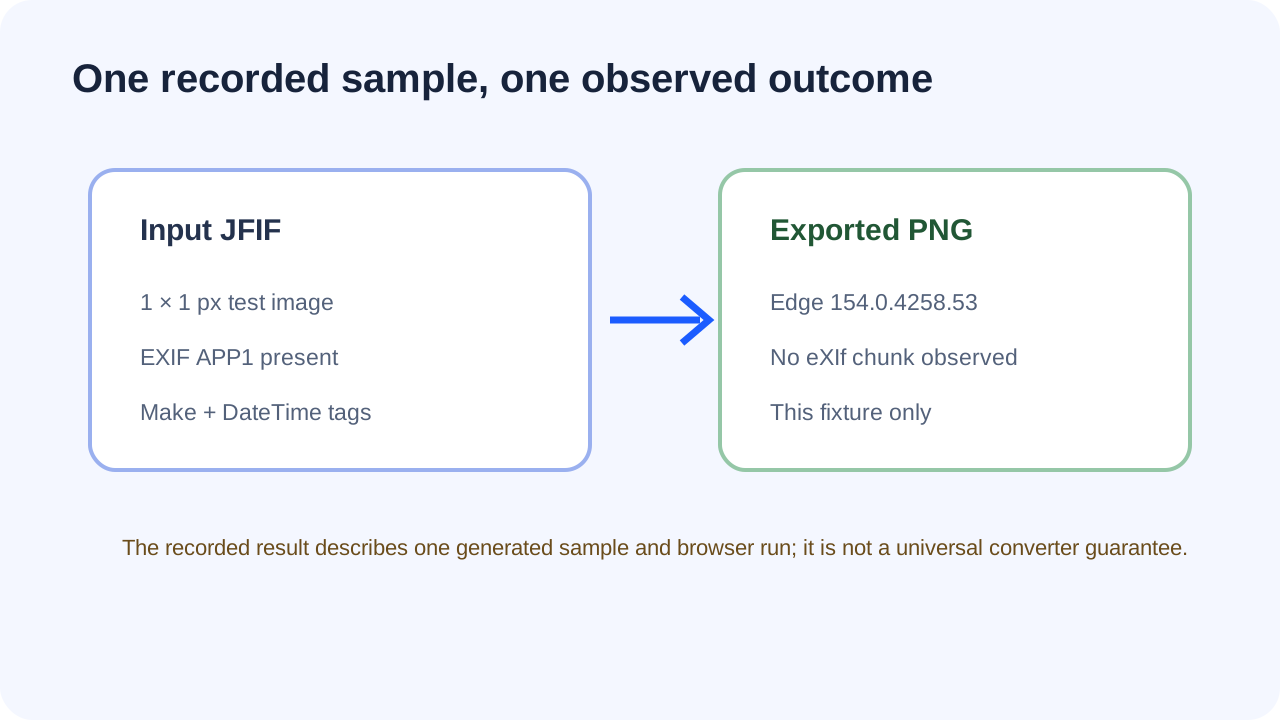
Metadata test: On October 6, 2026, I ran this page's converter in an isolated Microsoft Edge 154.0.4258.53 browser with a generated 1 × 1 JFIF containing EXIF Make and DateTime fields. The source had an EXIF APP1 block; the exported PNG had no eXIf chunk. This records the result for this page and sample only, not every browser or converter.
How to convert a JFIF file to PNG
- Choose the file, drop it into the input area, or paste a clipboard image.
- Wait for the preview and the PNG-ready status. If decoding fails, no download is offered.
- Check the displayed dimensions and byte count, then select Download PNG.
- Open the downloaded file and test it in the application that requested PNG.
Questions about JFIF to PNG
Why is there no quality slider?
This page exports PNG rather than another lossy JPEG. It does not expose a JPEG-style quality setting for PNG. If you need a smaller file, do not interpret a missing quality control as a promise that every PNG will be small.
Will it make a blurry image sharp?
No. The conversion changes the output encoding. It does not reconstruct missing detail, enlarge the image, or apply sharpening. Check the source at the same viewing size when judging the result.
What happens if my browser cannot decode the image?
The status reports the failure and hides the previous download so you cannot accidentally save an older result as the new conversion. Try opening the source in an image viewer first. A file ending in .jfif is not proof that its contents are a readable image.
Technical references
- W3C: PNG specification — lossless compression and alpha-channel support.
- WHATWG: canvas bitmap serialization — browser image export behavior.